CSB Bank has made debit-card setup largely self-service. Instead of depending on a branch whenever a new PIN is required, customers can create or reset their four-digit ATM PIN through the bank’s website, CSB ATM, CSB Mobile+ app or NetBanking.
New CSB debit cards are initially enabled for domestic ATM and physical Point-of-Sale transactions. Online or e-commerce transactions are disabled by default on new cards, and international usage is also switched off initially. Contactless Tap & Pay is kept off by default as an additional security measure while the card is being delivered.
This means debit-card setup has two parts. First, create the ATM PIN and make sure the card itself is switched on. After that, enable online, international or contactless facilities only if you plan to use them.
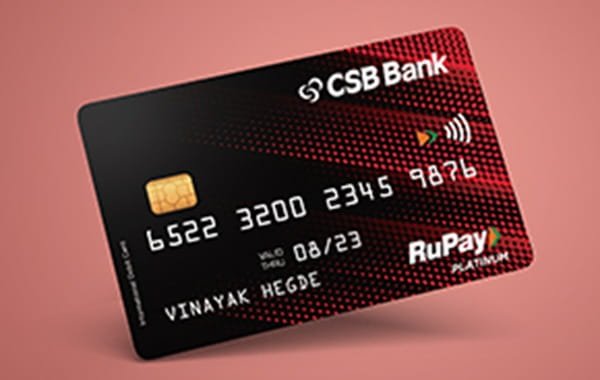
What Do You Need to Set Up a CSB Bank Debit Card?
Keep the following ready, depending on the method you choose:
- CSB Bank debit card
- 18-digit CSB account number for the website PIN method
- 16-digit debit card number
- Card expiry date
- CVV
- Date of birth registered with the bank for ATM Green PIN generation
- Mobile number registered with CSB Bank
- Access to the registered mobile for OTP verification
- CSB Mobile+ credentials if using Mobile Banking
- CSB NetBanking credentials if using Internet Banking
Your registered mobile number is particularly important because CSB uses OTP authentication for its digital PIN-setting services.
How to Activate a New CSB Bank Debit Card
For ordinary domestic usage, new CSB debit cards are issued with ATM and contact-based POS usage enabled by default. The practical first-time setup is therefore to create the debit-card PIN and make sure the card’s activity status is ON.
A simple process is:
- Generate the four-digit debit card PIN through the CSB website, CSB ATM, CSB Mobile+ or NetBanking.
- If required, check that Card Activity is switched ON through CSB Mobile+ or NetBanking.
- Complete a small ATM or physical POS transaction using the new PIN.
- Enable e-commerce, contactless or international transactions separately if you require them.
CSB Mobile+ provides a specific Card Activity ON/OFF facility under its debit-card management section. Internet Banking also provides Card Control facilities.
CSB Bank Debit Card PIN Generation Through the Official Website
CSB Bank provides an online Debit Card PIN Set/Reset facility that can be used without visiting an ATM.
Follow these steps:
- Open CSB Bank’s official Green PIN/PIN reset service.
- Select Debit Card PIN Set/Reset.
- Enter your 18-digit account number.
- Enter the 16-digit debit card number.
- Enter the card expiry date.
- Enter the CVV.
- Enter your preferred new four-digit ATM PIN.
- Complete the security verification requested by the bank.
- Submit the request.
CSB Bank states that a PIN created through this website facility becomes active after a 24-hour cooling period. Therefore, do not assume the PIN is ready for immediate ATM use just because the online request has been accepted.
CSB Bank Green PIN Generation Through ATM
For customers who want the PIN to be set immediately, a CSB ATM provides a direct Green PIN facility.
Follow these steps:
- Visit a CSB Bank ATM or CDM.
- Insert your CSB debit card.
- Select Set New PIN.
- Choose Generate OTP.
- Enter the date of birth registered with CSB Bank.
- An OTP will be sent to your registered mobile number.
- Enter the OTP at the ATM.
- Enter your preferred four-digit debit card PIN.
- Re-enter the PIN for confirmation.
- Complete the request.
CSB Bank states that the ATM Green PIN is set instantly after successful authentication.
This method can also be used when you have forgotten the old PIN.
CSB Debit Card PIN Generation Through CSB Mobile+
CSB Bank’s current Mobile Banking application is CSB Mobile+.
The bank officially provides ATM PIN setting through the app.
Follow these steps:
- Log in to CSB Mobile+.
- Open Value Added Services or the debit-card management section.
- Select the required debit card.
- Choose the option to Set ATM PIN.
- Enter your preferred four-digit PIN.
- Complete the authentication displayed by the app.
- Submit the request.
- Check the confirmation before attempting a card transaction.
CSB Bank’s Green PIN instructions specifically list:
CSB Mobile+ → Value Added Services → Set your preferred ATM PIN
as an official PIN-generation method.
CSB Debit Card PIN Generation Through NetBanking
CSB NetBanking also provides both Set PIN and Change PIN facilities.
Follow these steps:
- Log in to CSB NetBanking.
- On the Accounts page, select Set/Change ATM PIN.
- Select the debit card from the drop-down list.
- Choose the appropriate request type.
If You Have Forgotten the Existing PIN
Select Set PIN.
- Enter your new four-digit PIN.
- Re-enter the same PIN.
- Select Next.
- Enter the OTP received through SMS.
- Submit the request.
- Wait for the final confirmation from CSB Bank.
If You Know the Existing PIN
Select Change PIN.
- Enter the existing PIN.
- Enter the new four-digit PIN.
- Re-enter the new PIN.
- Select Next.
- Enter the OTP received through SMS.
- Submit the request.
CSB Bank’s current Digital Banking Guide notes that after submitting a NetBanking PIN request, the customer should wait for the final confirmation sent through SMS rather than assuming the PIN has changed immediately.
What If You Forget Your CSB Debit Card PIN?
CSB Bank provides several alternatives, so you do not need to keep guessing the forgotten PIN.
You can create a new PIN through:
- CSB Bank website
- CSB ATM/CRM
- CSB Mobile+
- CSB NetBanking
CSB Bank’s current debit-card terms specifically state that a cardholder who forgets the PIN can generate a new one through ATM/CRM, NetBanking or Mobile Banking.
The website is also currently offered as a dedicated PIN Set/Reset channel.
How to Switch a CSB Debit Card On or Off
If you temporarily do not want your debit card to remain usable, CSB provides card-activity controls.
Through CSB Mobile+:
- Log in to the app.
- Open Value Added Services.
- Select Card Management.
- Choose your debit card.
- Open Card Activity ON/OFF.
- Switch the card ON or OFF as required.
- Confirm the request.
CSB NetBanking provides a similar facility under:
Card Request → Card Control
Customers can also visit a CSB branch. Customer Care can accept a request to disable the card, although CSB notes that Customer Care supports only the disabling option for these card controls.
How to Enable Online Transactions on a CSB Debit Card
Online or e-commerce transactions are disabled by default on newly issued CSB debit cards.
To enable them through CSB Mobile+:
- Log in to CSB Mobile+.
- Open Value Added Services.
- Select Card Management.
- Choose Card Activity ON/OFF.
- Select your debit card.
- Enable Domestic Ecom
- Confirm the change.
The same Mobile Banking section allows the cardholder to separately control:
- ATM
- POS
- E-commerce
- Contactless Tap & Pay
for domestic and international transactions.
How to Set CSB Debit Card Transaction Limits
CSB Mobile+ allows cardholders to choose their own transaction limits within the maximum limit permitted for the card.
Follow these steps:
- Log in to CSB Mobile+.
- Open Value Added Services.
- Select Card Management.
- Choose Set Debit Card Limit.
- Select your debit card.
- Set the required limits separately for:
- ATM
- POS
- E-commerce
- Contactless Tap & Pay
- Choose domestic or international limits as applicable.
- Submit the request.
CSB’s official Digital Banking Guide confirms that customers can define separate domestic and international limits across these card channels.
How to Enable International Transactions
International usage is disabled by default on new CSB debit cards.
It can be enabled through:
- CSB Mobile+
- CSB NetBanking
- CSB branch
- SMS
Through CSB Mobile+
Go to:
Value Added Services → Card Management → Card Activity ON/OFF
Then enable International Card Operations and select the international ATM, POS, e-commerce or contactless channels you require.
Through SMS
From your registered mobile number, send:
INTLREG XXXX
to:
9895923000
Here, XXXX represents the last four digits of your debit card.
To switch international usage off again, send:
INTLOFF XXXX
to the same number.
Keeping international usage disabled when you do not need it can provide better control over the card.
How to Enable Contactless Tap & Pay
Contactless usage is OFF by default on CSB Tap & Pay debit cards during delivery.
You can enable it through:
- CSB Mobile+
- CSB Retail NetBanking
- CSB card-control facilities
Through CSB Mobile+:
- Open Value Added Services.
- Select Card Management.
- Choose Card Activity ON/OFF.
- Enable Contactless Tap & Pay.
- Set an appropriate contactless limit.
- Confirm the request.
CSB currently states that eligible contactless payments of up to ₹5,000 per transaction can be made without entering the debit-card PIN, subject to the applicable rules and card settings.
How to Block a Lost CSB Debit Card
If the debit card is genuinely lost or stolen, do not simply switch it off temporarily or change the PIN. Block it immediately.
Through CSB Mobile+:
- Open debit-card management.
- Select Block ATM Card.
- Select your debit card.
- Verify the card details.
- Submit the request.
CSB’s Digital Banking Guide warns that once the card is blocked through this facility, the request cannot be revoked.
You can also contact CSB Bank immediately.
24×7 Customer Care: 1800 266 9090
Direct number for reporting fraud or blocking a debit card: +91 22 69578555
CSB also currently lists +91 22 69578500 and +91 22 45393939 for customers calling from outside India.
What Should You Do After Setting the CSB Debit Card PIN?
Once your PIN is ready:
- Complete a small ATM or physical POS transaction.
- Remember that a website-generated PIN has a 24-hour cooling period.
- Check whether e-commerce is enabled before shopping online.
- Enable international transactions only when required.
- Set sensible ATM, POS and online spending limits.
- Enable contactless Tap & Pay only if you intend to use it.
- Never share your PIN, OTP or CVV.
- Block a lost or stolen card immediately.
CSB Bank specifically advises customers to keep PINs confidential and to enable POS, online and contactless facilities only as required.
What If CSB Debit Card PIN Generation Fails?
Before retrying, check whether:
- Your registered mobile number is active.
- Your 18-digit account number is correct when using the website.
- The 16-digit debit card number is correct.
- The expiry date and CVV are entered correctly.
- The date of birth recorded with CSB is correct when using ATM Green PIN.
- You are entering the latest OTP.
- The card itself is switched ON.
- The website PIN’s 24-hour cooling period has finished.
If you submitted a NetBanking PIN request, wait for the bank’s final SMS confirming that the new PIN is ready.
If the issue continues, contact:
CSB Bank Customer Care: 1800 266 9090
CSB currently provides this toll-free service 24×7 for customers within India.
FAQs
1. Can I generate a CSB Bank debit card PIN without visiting an ATM?
Yes. CSB Bank allows customers to generate or reset a four-digit debit-card PIN through its website, CSB Mobile+ and NetBanking in addition to CSB ATMs. The website method requires the account number and debit-card details, while digital banking provides its own authenticated PIN-setting options.
2. How quickly does a newly generated CSB debit card PIN become active?
It depends on the method. CSB Bank states that a PIN generated directly through a CSB ATM is set instantly. A PIN set through the bank’s website becomes active after a 24-hour cooling period. For NetBanking PIN requests, customers should wait for the final confirmation SMS before using the new PIN.
3. Why does my new CSB debit card work at an ATM but not for online shopping?
Online purchases are disabled by default on new CSB debit cards even though domestic ATM and physical POS usage is initially enabled. Use CSB Mobile+ or NetBanking Card Control to enable the e-commerce channel and set an appropriate transaction limit before retrying the payment.
4. Can I enable and disable international usage on a CSB debit card by SMS?
Yes. From your registered mobile number, send INTLREG followed by the last four digits of the debit card to 9895923000 to enable international usage. Send INTLOFF followed by the last four digits to the same number when you want to disable it again. International usage can also be controlled through CSB Mobile+, NetBanking or a branch.