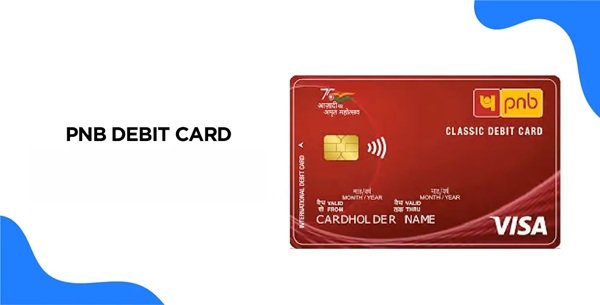
When you receive a new Punjab National Bank (PNB) debit card, one of the first things you need to do is generate the card PIN and make sure the card is ready for transactions. The four-digit ATM PIN is required for cash withdrawals and PIN-authenticated payments at merchant outlets.
PNB uses its Green PIN facility for debit card PIN generation and regeneration. Instead of sending a printed PIN mailer, the bank provides a six-digit One-Time Password (OTP) on the mobile number registered with the account. The OTP can then be used to create a four-digit ATM-cum-debit card PIN through a PNB ATM, Internet Banking, PNB ONE or IVR.
PNB also treats debit-card activation and PIN generation as connected processes. According to the bank, a newly issued card is activated in its banking system when it is verified by the branch, while the customer completes the Green PIN process to create the usable ATM PIN. PNB’s current Green PIN instructions specifically tell customers to use the six-digit OTP through one of the supported channels to create the ATM PIN and activate the debit card.
What Do You Need to Activate a PNB Debit Card?
Keep the following ready before starting:
- Your Punjab National Bank debit card
- Mobile number registered with PNB
- Access to the registered mobile for receiving the Green PIN OTP
- Complete 16-digit debit card number
- Debit card expiry month and year when required
- Bank account linked with the debit card
- PNB Internet Banking credentials if using Internet Banking
- PNB ONE access if using the mobile banking method
The registered mobile number is particularly important because PNB sends the Green PIN OTP only to the mobile number registered against the account/card.
How to Activate a New PNB Debit Card
PNB states that a newly issued debit card is activated in real time once the branch verifies it in the bank’s system. The customer then needs to create the four-digit PIN before using the card normally.
The practical process is:
- Receive your new PNB debit card.
- Make sure your mobile number is registered with the bank.
- Generate or receive the six-digit Green PIN OTP.
- Use the OTP through a PNB ATM, Internet Banking, PNB ONE or IVR.
- Create a four-digit ATM-cum-debit card PIN.
- Complete an ATM or merchant transaction to confirm that the card and PIN are working correctly.
PNB’s Green PIN OTP is valid for 72 hours and can be used only once. If it expires before you create the permanent PIN, you need to request another OTP.
PNB Green PIN Generation Through SMS
For a new PIN or duplicate PIN request, PNB allows customers to obtain the Green PIN OTP by SMS.
Send the following message from your registered mobile number:
DCPIN [space] 16-digit Debit Card Number
Send it to:
5607040 or 9264092640
For example:
DCPIN 4723XXXXXXXXXXXX
The complete 16-digit debit card number must be included in the SMS. PNB will send a six-digit OTP to your registered mobile number. The OTP remains valid for 72 hours.
Once the OTP is received, it can be used through any of PNB’s supported PIN-setting channels.
PNB Debit Card PIN Generation Through a PNB ATM
If you have received the six-digit Green PIN OTP, you can set the permanent four-digit PIN at a PNB ATM.
Follow these steps:
- Visit a PNB ATM.
- Insert or swipe your debit card.
- Select the Create/Change PIN (GPIN) or Green PIN option displayed on the ATM.
- Select the OTP validation option.
- Enter the six-digit Green PIN OTP received on your registered mobile number.
- Enter a new four-digit ATM-cum-debit card PIN of your choice.
- Re-enter the same four-digit PIN for confirmation.
- Submit the request.
Once both PIN entries match, the ATM will confirm that the PIN has been generated successfully.
Avoid easily predictable PINs such as 1234, 0000, your year of birth or repeated digits.
PNB Debit Card PIN Generation Through Internet Banking
PNB Retail Internet Banking customers can also set or reset their debit card PIN without visiting an ATM.
Follow these steps:
- Log in to PNB Retail Internet Banking.
- Go to Value Added Services.
- Open Card Related Services.
- Select Set/Reset Debit Card PIN.
- Select the account linked with the debit card.
- Enter the debit card number.
- Enter the card expiry month and year.
- Enter the six-digit Green PIN OTP received on your registered mobile.
- Select Submit.
- Enter a new four-digit ATM-cum-debit card PIN.
- Re-enter the new PIN for confirmation.
- Submit the request.
After successful verification, the new PIN is registered for the debit card.
PNB Debit Card PIN Generation Through PNB ONE
PNB ONE provides a convenient mobile-banking method for setting the debit card PIN.
Follow these steps:
- Log in to the PNB ONE
- Open Debit Card.
- Select Generate Green PIN.
- Select the bank account to which the debit card is linked.
- Enter the debit card number.
- Enter the card expiry month and year.
- Enter the six-digit Green PIN OTP.
- Select Continue.
- Enter the four-digit ATM-cum-debit card PIN you want to create.
- Confirm the new PIN.
- Submit the request.
PNB ONE also provides several debit-card management facilities, including ATM, POS and e-commerce limit management, card On/Off functions, international usage controls, contactless limits and debit-card hotlisting.
PNB Debit Card PIN Generation Through IVR
PNB also permits customers to complete the Green PIN process through its Interactive Voice Response service.
Call:
1800 1800 or 1800 2021
Then:
- Select your preferred language.
- Choose the option for debit-card-related services.
- Select the option to generate or validate the Green PIN OTP.
- Enter the debit card number when requested.
- Complete the required OTP verification.
- Enter a new four-digit ATM-cum-debit card PIN.
- Re-enter the PIN for confirmation.
- Complete the IVR request.
PNB lists ATM, Internet Banking, PNB ONE and IVR as supported channels for creating the permanent debit card PIN after obtaining the Green PIN OTP.
How to Enable Online Transactions on a PNB Debit Card
A newly activated debit card may work at ATMs and physical merchant outlets but still fail during online payments. This does not necessarily mean that there is a problem with the card.
PNB states that debit cards are generally enabled for ATM and POS transactions by default, while e-commerce, contactless and international transactions are disabled by default as security measures. Customers can enable these facilities when required.
Through PNB Internet Banking
- Log in to PNB Internet Banking.
- Open Value Added Services.
- Select Debit Card Enable/Disable.
- Select the account linked with the debit card.
- Enter the card number, expiry date and card PIN.
- Select the required transaction service, such as ATM, POS or e-commerce.
- Continue with the request.
- Enter the OTP sent to your registered mobile number.
- Submit the request.
PNB will display a confirmation once the debit-card preferences have been updated successfully.
How to Manage PNB Debit Card Limits Through PNB ONE
PNB ONE allows customers to control the amount that can be spent or withdrawn through different debit-card channels.
- Log in to PNB ONE.
- Select Services.
- Expand Debit Cards.
- Select the appropriate option, such as:
- Update ATM Limit
- Update POS Limit
- Update E-commerce Limit
- Update Contactless Limit
- Select the bank account.
- Select the required debit card.
- Check the current and applicable limit.
- Enter the new required limit.
- Continue with the request.
- Enter the transaction password or other requested authentication.
- Confirm the change.
PNB permits separate management of ATM, POS, e-commerce and contactless transaction limits through its digital channels.
What Should You Do After Generating the PNB Debit Card PIN?
Once the permanent four-digit PIN has been successfully generated, use the debit card for a small ATM or merchant transaction to make sure the PIN is functioning properly.
If you intend to shop online, use the card abroad or make contactless payments, check the relevant transaction settings before attempting the payment. E-commerce, contactless and international usage may have to be enabled separately.
Never share your debit card PIN, Green PIN OTP, Internet Banking password, PNB ONE credentials or other confidential banking information with another person. PNB specifically advises customers not to disclose passwords or OTPs over phone or e-mail.
What If PNB Debit Card PIN Generation Fails?
If you cannot generate or set the PIN, first check the following:
- The mobile number being used is registered with PNB.
- You sent the SMS from the registered mobile number.
- The complete 16-digit debit card number was entered correctly.
- The card is active and properly linked with your account.
- The card has not been hotlisted.
- You are using the latest Green PIN OTP.
- The OTP has not crossed its 72-hour validity period.
- The debit card number and expiry date entered in Internet Banking are correct.
If the issue continues, contact Punjab National Bank on 1800 1800, 1800 2021 or the paid/global number +91 120 2490000.
FAQs
1. What happens if I enter the wrong PNB debit card PIN three times?
PNB states that three incorrect PIN attempts can temporarily block the debit card for the day as a security measure. The card is automatically activated again on the next date. Green PIN OTP generation will also not work while the card is temporarily blocked, so wait until the card becomes active instead of repeatedly attempting the PIN.
2. I requested the PNB Green PIN OTP more than once. Which OTP should I use?
Use only the latest OTP received on your registered mobile number. PNB states that when a new Green PIN OTP is generated, all previously generated OTPs automatically become invalid.
3. Does PNB charge for sending the Green PIN OTP?
PNB does not charge customers for delivering the Green PIN OTP to the registered mobile number. However, your telecom operator may charge you for the SMS you send to request the OTP according to your mobile plan.
4. I am outside India. Which number should I use to request a PNB Green PIN?
PNB customers outside India can send DCPIN [space] full debit card number from their registered mobile number to 9264092640. PNB’s NRI information presents the international-format contact as +91-9264092640.