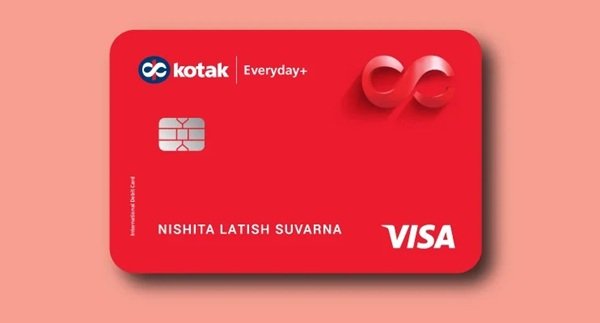
After receiving a new Kotak Mahindra Bank debit card, you should make sure the card is active and generate its PIN before using it for regular transactions. Kotak provides several self-service options, so customers normally do not need to visit a branch just to activate a card or create a PIN.
Kotak debit card activation can be managed through Mobile Banking, Net Banking and SMS Banking. PIN generation or regeneration is available through the Kotak Mobile Banking app, Net Banking, an ATM, SMS and Kotak’s online Instant PIN Generation facility. Customers can also contact Kotak’s Customer Contact Centre for assistance.
One important difference is that Kotak debit cards generally use a 6-digit PIN, whereas many other Indian banks use a four-digit debit card PIN. Kotak’s current ATM PIN guidance specifically identifies its ATM/debit card PIN as a six-digit code.
Activation and PIN generation should also be treated as separate processes. Activating or unblocking the card makes it available for transactions, while PIN generation creates the security number required for ATM and PIN-authenticated card transactions.
What Do You Need to Activate a Kotak Debit Card?
Depending on the method selected, keep the following ready:
- Kotak Mahindra Bank debit card
- Mobile number registered with Kotak Bank
- CRN or Customer Relationship Number
- Debit card number
- Card expiry date
- CVV printed on the back of the card
- Access to Kotak Mobile Banking or Net Banking
- Registered mobile phone for receiving OTPs
Kotak states that PIN generation requires an active debit card. If the card has been temporarily blocked, it must first be unblocked before a new PIN can be generated. PIN regeneration is not available for a permanently blocked card.
How to Activate a Kotak Mahindra Bank Debit Card
Kotak allows debit cards to be activated or reactivated through Mobile Banking, Net Banking and SMS.
Through Kotak Mobile Banking
Follow these steps:
- Log in to the Kotak Mobile Banking app.
- Select Service Requests.
- Choose Debit Card Requests or Debit Card Service Requests.
- Select Activate/Deactivate Debit Card.
- Choose the required debit card.
- Switch the card status to On.
- Submit the request.
- Confirm the change.
The card can similarly be temporarily switched off when you do not want to use it and switched back on later.
Through Kotak Net Banking
- Log in to Kotak Net Banking using your CRN and password.
- Open the Debit Card
- Select Deactivate/Activate Card.
- Choose the required debit card.
- Select the activation option.
- Submit and confirm the request.
The card status is changed according to the request submitted through Net Banking.
How to Activate a Kotak Debit Card Through SMS
Kotak also provides an easy SMS facility for activating or unblocking a debit card.
From your registered mobile number, type:
DCUNBLOCK XXXX
Here, XXXX represents the last four digits of your Kotak debit card.
Send the SMS to:
5676788 or 9971056767
For example, if your debit card ends in 4587, send:
DCUNBLOCK 4587
Kotak also provides the reverse facility for temporarily blocking a card through the DCBLOCK command.
Kotak Debit Card PIN Generation Through Mobile Banking
The Kotak Mobile Banking app provides one of the simplest ways to create a PIN for a new card or regenerate it if you have forgotten the existing PIN.
Follow these steps:
- Log in to the Kotak Mobile Banking app.
- Select Service Requests.
- Choose Debit Card or Debit Card Requests.
- Select Regenerate PIN.
- Choose the debit card for which you want to generate the PIN.
- Enter your new PIN.
- Re-enter the PIN for confirmation.
- Complete any authentication requested by the app.
- Submit the request.
Once successfully processed, the new PIN can be used with the debit card. Kotak officially lists this route for both new PIN generation and PIN regeneration.
Kotak Debit Card PIN Generation Through Net Banking
Customers with Kotak Net Banking can also generate a new debit card PIN online.
Follow these steps:
- Log in to Kotak Net Banking.
- Select Cards.
- Choose Debit Cards.
- Select Instant Regeneration of PIN or Set Debit Card PIN.
- Select the required debit card.
- Enter your preferred new PIN.
- Re-enter the same PIN.
- Complete OTP authentication if requested.
- Submit the request.
After successful verification, the new PIN is set for the selected debit card.
Kotak Debit Card PIN Generation Through an ATM
Kotak also allows customers to generate or change their debit card PIN at an ATM.
Follow these steps:
- Visit a Kotak Mahindra Bank ATM.
- Insert your debit card.
- Select PIN Generation or PIN Change.
- Enter the requested debit card or account details.
- An OTP may be sent to your registered mobile number.
- Enter the OTP or existing PIN, depending on the option being used.
- Enter your new PIN.
- Re-enter the new PIN to confirm it.
- Complete the transaction.
Once the process is completed successfully, the new PIN can be used for ATM and other eligible debit-card transactions.
Kotak Debit Card PIN Generation Through SMS
Kotak also provides an SMS-based PIN generation facility.
From your mobile number registered with Kotak Bank, send:
DEBITPIN XXXX
Here, XXXX represents the last four digits of your debit card number.
Send it to:
5676788 or 9971056767
After sending the SMS:
- You will receive an OTP on your registered mobile number.
- Visit a Kotak ATM within the validity period mentioned in the SMS.
- Insert your debit card.
- Select the PIN change or PIN generation option.
- Enter the OTP when requested.
- Enter your new PIN.
- Re-enter it for confirmation.
The new debit card PIN becomes usable after successful completion of the ATM process.
Kotak Debit Card PIN Generation Without Logging In
Kotak also provides an Instant PIN Generation facility on its official website. This is useful if you do not want to log in to Net Banking or Mobile Banking.
Keep your card and registered mobile phone ready.
The process requires you to:
- Open Kotak’s Instant PIN Generation facility.
- Select Debit Card / Best Compliments Card / Smart EMI Card.
- Choose the applicable card network such as Visa, RuPay or Mastercard.
- Enter your debit card number.
- Select the card expiry date.
- Enter the CVV/CVC printed on the back of the card.
- Enter your new PIN.
- Re-enter the PIN.
- Confirm the request.
- Enter the OTP sent to your registered mobile number.
- Submit the request.
Kotak notes that this facility works only for active cards.
How to Enable Online Transactions on a Kotak Debit Card
Card activation does not necessarily mean every transaction channel is enabled. Domestic online payments, international transactions and contactless payments can have separate controls.
Using the Kotak Mobile Banking app:
- Log in to the app.
- Select Service Requests.
- Choose Debit Card/Spendz Card.
- Open Card Controls.
- Select the required debit card.
- Choose the domestic or international controls.
- Enable the required transaction facility.
- Set the appropriate transaction limit.
- Confirm the change.
Kotak allows customers to control ATM, merchant/POS, e-commerce, contactless and international card usage through its card-control facilities.
How to Manage Kotak Debit Card Transactions Through Net Banking
Net Banking also provides detailed debit-card controls.
Follow these steps:
- Log in to Kotak Net Banking.
- Select Cards.
- Choose Debit Card.
- Open Card Controls.
- Select the required card.
- Enable or disable the required transaction types.
- Adjust transaction limits if necessary.
- Submit the changes.
Kotak states that Net Banking card controls can be used for features including contactless payments and international transactions.
How to Enable International Usage on a Kotak Debit Card
Kotak debit cards issued after September 30, 2020 do not have international payments automatically enabled. Customers who want to use their cards overseas or for eligible international online transactions must enable international usage.
Through Mobile Banking
Go to:
Service Requests → Debit Card → Card Control → Select Debit Card → International/Domestic Controls
Switch International Usage to On.
Through Net Banking
- Log in to Kotak Net Banking.
- Open the Debit Card
- Select Card Control.
- Enable international usage for the required ATM, POS or e-commerce transaction category.
- Set appropriate international transaction limits.
Through SMS
Send:
DCENB XXXX
to 5676788 or 9971056767 from your registered mobile number.
XXXX represents the last four digits of the debit card.
What Should You Do After Generating the Kotak Debit Card PIN?
Once the PIN has been generated successfully, make a small ATM or merchant transaction to make sure the card and PIN are functioning correctly.
You should also:
- Check whether your debit card is active.
- Enable e-commerce transactions if you plan to shop online.
- Enable international usage only when required.
- Review ATM, POS and online transaction limits.
- Keep contactless transactions enabled only according to your needs.
- Never share your debit card PIN, CVV or OTP with anyone.
Avoid using easily guessed numbers such as your birth date or repetitive combinations as your PIN.
What If Kotak Debit Card PIN Generation Fails?
If PIN generation does not work, check the following:
- The debit card is active.
- The card has not been temporarily or permanently blocked.
- The card number, expiry date and CVV are correct.
- Your registered mobile number is active and able to receive OTPs.
- You are using the latest OTP received from Kotak.
- The correct debit card has been selected in Mobile Banking or Net Banking.
Kotak specifically states that a PIN can be generated only for an active card. A temporarily blocked card has to be unblocked first, while PIN regeneration is not available for permanently blocked cards.
If the problem continues, contact Kotak Mahindra Bank. The bank currently lists 1800 4100 as its toll-free Customer Contact Centre number for banking queries, complaints and assistance.
FAQs
1. Is the Kotak Mahindra Bank debit card PIN four digits or six digits?
Kotak’s current official ATM PIN guidance states that a Kotak debit card ATM PIN is a six-digit code, unlike the four-digit PIN commonly used by several other banks. Customers should therefore follow the PIN length displayed by Kotak while generating the PIN for their particular card.
2. Can I activate my Kotak debit card without visiting a branch?
Yes. Kotak allows debit-card activation or reactivation through Mobile Banking, Net Banking and SMS. From the registered mobile number, you can also send DCUNBLOCK followed by the last four digits of the debit card to 5676788 or 9971056767.
3. Can I generate a Kotak debit card PIN if I have forgotten the old PIN?
Yes. You can regenerate the PIN through Kotak Mobile Banking, Net Banking, the Instant PIN Generation facility or other supported channels. You normally do not need to remember the old PIN when using the PIN-regeneration service, provided the card and customer authentication are successfully verified.
4. Why is my Kotak debit card working at an ATM but not for international payments?
International usage may not be enabled. Kotak states that debit cards issued after September 30, 2020 do not have international payments enabled by default. You can turn international usage on through Mobile Banking, Net Banking or SMS and separately set ATM, POS and e-commerce international limits.