When you receive a new HDFC Bank debit card, the first steps are to activate the card and set a four-digit ATM PIN. The PIN is required for ATM cash withdrawals and PIN-authenticated transactions at merchant outlets, while separate card controls may need to be enabled for online, contactless or international transactions.
HDFC Bank provides several convenient ways to set or regenerate a debit card PIN. Customers can use an HDFC Bank ATM, MyCards, MobileBanking, NetBanking, PhoneBanking/IVR and other digital servicing channels. This means a branch visit is normally not required just for debit card PIN generation.
It is also useful to understand that card activation and PIN generation are not exactly the same thing. Setting the PIN prepares the card for PIN-based transactions, while using the card for an eligible ATM or Point of Sale transaction can complete the practical activation of the debit card. HDFC Bank documents also refer to debit card activation through ATM or POS usage.
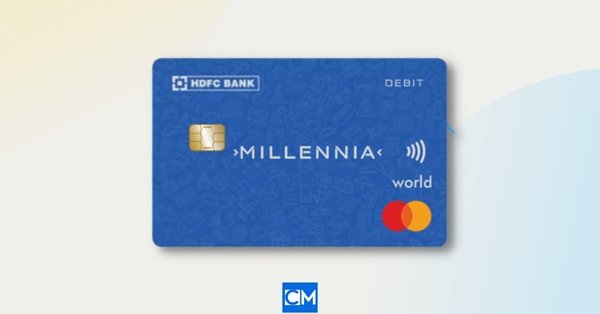
What Do You Need to Activate an HDFC Bank Debit Card?
Keep the following details ready before starting:
- Your HDFC Bank debit card
- Mobile number registered with HDFC Bank
- HDFC Bank Customer ID
- Date of birth registered with the bank
- Debit card expiry date
- CVV printed on the back of the card
- Access to NetBanking or MobileBanking if you plan to use an online method
Your registered mobile number is particularly important because HDFC Bank uses OTP or Green PIN verification during several debit card PIN-generation processes.
How to Activate a New HDFC Bank Debit Card
For a newly issued physical debit card, one of the simplest ways to start using it is to set the debit card PIN and then complete a transaction at an HDFC Bank ATM or a merchant Point of Sale terminal.
A practical process is:
- Generate or set your four-digit debit card PIN using one of the methods explained below.
- Visit an HDFC Bank ATM or use the card at a merchant outlet.
- Insert the debit card rather than using contactless payment for the first PIN-based transaction.
- Enter your newly created four-digit PIN.
- Complete a balance enquiry, cash withdrawal or eligible merchant transaction.
Once the transaction is successfully processed, the card should be ready for normal permitted usage.
Remember that online, international and contactless transactions are controlled separately. If one of these facilities is disabled, the card can still work at an ATM or physical merchant outlet while being declined for that particular transaction type.
HDFC Bank Debit Card PIN Generation Through MyCards
HDFC Bank’s MyCards platform provides a convenient way to manage debit cards without logging in through traditional NetBanking.
To set or reset your debit card PIN:
- Open HDFC Bank MyCards.
- Enter your mobile number registered with HDFC Bank.
- Authenticate using the OTP sent to your mobile.
- Enter the required customer verification details.
- Open the Debit Card
- Select the relevant debit card.
- Choose Set PIN.
- Enter the new four-digit PIN you want to use.
- Enter the card expiry date in MM/YY format.
- Enter the CVV printed on the card.
- Accept the applicable terms and conditions.
- Authenticate the request using the OTP sent to your registered mobile.
- Submit the request.
Once successfully processed, the new PIN becomes your debit card PIN. HDFC Bank’s current PIN-reset instructions specifically allow customers to set a new PIN after verification through registered mobile number, date of birth and debit card details.
HDFC Bank Debit Card PIN Generation at an ATM
You can also generate or reset the debit card PIN at an HDFC Bank ATM.
If You Have Received the OTP or Green PIN
Follow these steps:
- Visit an HDFC Bank ATM.
- Insert your debit card.
- Select Change PIN or the available PIN-setting option.
- Enter the six-digit OTP or Green PIN received on your registered mobile number.
- Confirm the authentication.
- Enter a new four-digit PIN of your choice.
- Re-enter the new PIN for confirmation.
- Complete the transaction.
Your new ATM/debit card PIN will then be set.
If You Have Not Received the OTP
HDFC Bank ATM also provides a process for generating the required PIN authentication.
- Insert your debit card into an HDFC Bank ATM.
- Select Change PIN or Set PIN.
- Choose the Generate PIN option when available.
- Enter the last four digits of your HDFC Bank Customer ID.
- A six-digit Green PIN will be sent to your registered mobile number.
- Enter the Green PIN at the ATM.
- Enter your registered 10-digit mobile number when requested.
- Set a new four-digit debit card PIN.
- Confirm the PIN.
The PIN can then be used for ATM and PIN-authenticated merchant transactions.
HDFC Bank Debit Card PIN Generation Through MobileBanking
HDFC Bank customers can also manage debit cards using the HDFC Bank MobileBanking app.
The exact menu layout may change with app updates, but the general process is:
- Log in to the HDFC Bank MobileBanking app.
- Open the Cards
- Select your HDFC Bank debit card.
- Open the card-management options.
- Select the option to set, change or regenerate the debit card PIN.
- Complete the required debit card verification.
- Enter the OTP received on your registered mobile number if requested.
- Create a new four-digit PIN.
- Confirm the PIN to complete the request.
HDFC Bank lists MobileBanking among the official channels through which debit card PINs can be generated or regenerated.
HDFC Bank Debit Card PIN Generation Through NetBanking
If you use HDFC Bank NetBanking, debit card services can also be accessed online.
Follow these steps:
- Log in to HDFC Bank NetBanking using your Customer ID and password.
- Go to the Cards or Pay
- Select Debit Cards.
- Choose the debit card for which you want to generate or change the PIN.
- Open the PIN generation or PIN change service.
- Complete the required authentication.
- Enter a new four-digit PIN.
- Re-enter the PIN for confirmation.
- Authenticate the request through OTP or the verification method displayed by HDFC Bank.
- Submit the request.
HDFC Bank officially lists NetBanking as one of its debit card PIN generation and regeneration channels.
HDFC Bank Debit Card PIN Generation Through PhoneBanking/IVR
Customers who do not want to use NetBanking or MobileBanking can also set a debit card PIN through HDFC Bank’s IVR facility.
HDFC Bank’s debit card PIN instructions provide the following process:
- Call 1860 266 0333.
- Select your preferred language.
- Choose the Debit Card
- Enter the requested identification information, such as your Customer ID, last four digits of the debit card or account number.
- Generate an OTP and complete the authentication.
- Enter your debit card CVV.
- Enter the card expiry date.
- Create a new four-digit debit card PIN.
- Confirm the PIN when prompted.
After successful verification, the PIN is set for the debit card.
How to Enable Online Transactions on an HDFC Bank Debit Card
Generating a PIN does not necessarily mean that online transactions are enabled.
HDFC Bank allows customers to separately enable or disable:
- ATM transactions
- Point of Sale transactions
- Online or e-commerce transactions
- Contactless transactions
- Domestic transactions
- International transactions
One convenient method is through MyCards.
- Log in to HDFC Bank MyCards using your registered mobile number and OTP.
- Add or select your debit card.
- Open the card-control or transaction-limit section.
- Select Online Transactions.
- Switch the facility ON.
- Set the required transaction limit.
- Authenticate the change if requested.
MyCards can also be used to enable or disable POS, ATM and contactless transactions and to change their limits.
How to Enable Debit Card Transactions Through HDFC Bank MobileBanking
You can also manage transaction controls through the MobileBanking app.
- Log in to HDFC Bank MobileBanking.
- Open Menu.
- Go to Pay and select Cards.
- Select your debit card.
- Open Show More.
- Select Customise next to Limits and Restrictions.
- Check the current domestic and international card controls.
- Switch ON the required transaction type.
- Set the desired limit.
- Select Confirm.
- Complete debit card verification.
This allows you to control ATM cash withdrawal, POS, e-commerce, contactless and international usage according to your requirements.
How to Enable HDFC Bank Debit Card Transactions Through NetBanking
The same card controls are available through NetBanking.
- Log in to HDFC Bank NetBanking.
- Select Pay.
- Open Cards.
- Select Debit Cards.
- Choose the required debit card.
- Select Customise.
- Check the available domestic and international transaction controls.
- Enable the required transaction facility.
- Set or change the applicable transaction limit.
- Select Confirm.
- Complete the required verification.
This is particularly useful if your debit card works at an ATM but online or international transactions are being declined.
What Should You Do After Setting the HDFC Bank Debit Card PIN?
After successfully generating the PIN, perform a small ATM or merchant transaction to confirm that the card and PIN are functioning properly.
You should also check your card controls before using the card online or internationally. Enable only the transaction channels you actually require and keep sensible transaction limits.
Never share your debit card PIN, OTP, CVV, NetBanking password or MobileBanking credentials with anyone. HDFC Bank’s debit card terms specifically require customers to keep the card PIN confidential.
What If HDFC Bank Debit Card PIN Generation Fails?
If you are unable to generate the PIN, check the following:
- Your mobile number is registered with HDFC Bank.
- You are entering the correct date of birth.
- The debit card number, expiry date and CVV are correct.
- The card has not been permanently blocked.
- The OTP or Green PIN has not expired.
- The selected card is linked to the correct HDFC Bank account.
If digital PIN generation continues to fail, contact HDFC Bank customer care. HDFC Bank currently lists 1800 1600 and 1800 2600 among its customer-care numbers for card servicing. Customers calling while overseas can use the applicable international support facility.
FAQs
1. Can I activate an HDFC Bank debit card without visiting a branch?
Yes. A branch visit is generally not required. You can set the debit card PIN through HDFC Bank’s digital channels or ATM and then use the card for an eligible ATM or POS transaction. HDFC Bank provides PIN generation and card-management services through MyCards, MobileBanking, NetBanking, ATM and other supported channels.
2. Why does my HDFC Bank debit card work at an ATM but not for online payments?
The online or e-commerce transaction facility may be disabled. ATM, POS, online, contactless and international transactions are controlled separately. You can enable online transactions through MyCards, HDFC Bank MobileBanking or NetBanking and set an appropriate transaction limit.
3. Can I generate a new HDFC Bank debit card PIN if I forget the old PIN?
Yes. You do not necessarily need the old PIN to regenerate it. HDFC Bank provides PIN regeneration through channels including MyCards, MobileBanking, NetBanking, Insta Services, ATM and other supported services after customer authentication.
4. Can I choose my own four-digit HDFC Bank debit card PIN?
Yes. During the PIN-setting or regeneration process, you can choose a new four-digit PIN. Avoid obvious combinations such as 1234, 0000, your birth year or repeated digits. Keep the PIN confidential and do not write it on the card or store it together with the debit card.