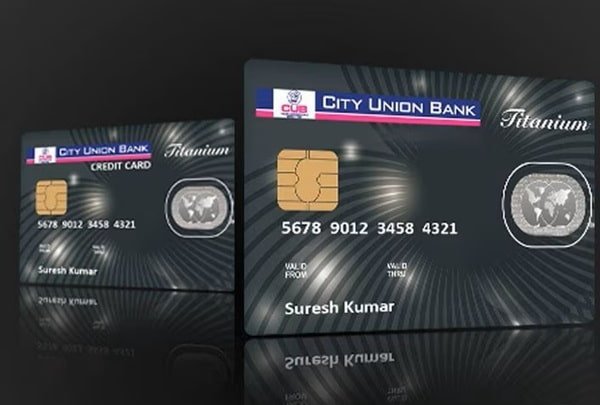
City Union Bank makes debit-card setup largely self-service through its Green PIN facility. Instead of waiting for a separate ATM PIN to arrive, both new and existing customers can create their own four-digit debit card PIN using a CUB ATM, Net Banking or CUB Mobile Banking.
For a new card, the Green PIN process does more than simply create the PIN. City Union Bank specifically provides it as the method for activating a new debit card through an ATM or its digital banking facilities. Customers can later reset a forgotten PIN through the same supported banking channels.
Another point to check before using the card is its transaction settings. E-commerce, contactless and international transactions are disabled by default. ATM, POS and other card channels can be enabled, disabled and assigned individual transaction limits through CUB’s banking channels.
What Do You Need to Activate a City Union Bank Debit Card?
Keep the following ready before starting:
- City Union Bank debit card
- Mobile number registered with CUB
- Access to the registered mobile for receiving OTP
- CUB Customer ID when using the ATM Green PIN method
- CUB Net Banking credentials if using Internet Banking
- Net Banking transaction password for online PIN reset
- CUB Mobile Banking MPIN if using the app
The registered mobile number is particularly important because CUB sends a six-digit OTP to it during the ATM Green PIN process and also uses OTP authentication for digital PIN services.
How to Activate a New City Union Bank Debit Card
City Union Bank allows customers to activate a new debit card by generating their own four-digit PIN through the Green PIN facility.
You can use:
- CUB ATM
- CUB Net Banking
- CUB Mobile Banking
A practical setup process is:
- Choose one of the available Green PIN methods.
- Complete the required cardholder authentication.
- Create a four-digit ATM/debit card PIN.
- Confirm the PIN.
- After successful PIN generation, use the card for a small ATM or merchant POS transaction.
- Check the card-management settings separately if you intend to use online, contactless or international transactions.
City Union Bank Debit Card PIN Generation Through ATM
CUB provides a clearly documented Green PIN process at its ATMs.
For a new debit card:
- Visit a City Union Bank ATM.
- Insert the new debit card.
- The bank will send a One-Time Password (OTP) to your registered mobile number.
- After receiving the OTP, insert the debit card again.
- Enter your Customer ID when requested.
- Enter the six-digit OTP received on your registered mobile number.
- Create a new four-digit ATM PIN of your choice.
- Confirm the new PIN as instructed by the ATM.
- Complete the process.
The four-digit PIN then becomes your ATM/debit card PIN.
CUB’s official ATM information also confirms that Green PIN is available at its ATMs for generating a new debit-card PIN.
Avoid predictable combinations such as 1234, 0000, your birth year or repeated numbers.
City Union Bank Debit Card PIN Generation Through Net Banking
City Union Bank allows customers to reset or generate their debit-card PIN through CUB Net Banking.
The bank’s official process is:
- Log in to City Union Bank Net Banking.
- Open Change Your PIN.
- Select Debit/ATM Card PIN.
- Choose the required debit card from the dropdown menu.
- Enter the new four-digit PIN you want to use.
- Enter your Transaction Password.
- Enter the OTP received on your registered mobile number.
- Submit the request.
Once the authentication is successfully completed, the new PIN is registered for the selected debit card.
This facility is particularly useful when you have forgotten the old ATM PIN because CUB allows PIN reset using your Net Banking transaction password and OTP.
City Union Bank Debit Card PIN Generation Through Mobile Banking
City Union Bank also provides PIN set/reset through its CUB ALL IN ONE Mobile Banking facility.
The official basic menu path is:
CUB ALL IN ONE → Cards → Debit/ATM Card PIN Change
Follow these steps:
- Log in to CUB Mobile Banking.
- Open the Cards
- Select Debit/ATM Card PIN Change.
- Select the required debit card from the list displayed.
- Enter a new four-digit ATM PIN.
- Re-enter the same PIN for confirmation.
- Enter your MPIN.
- Select the PIN Reset
- Enter the OTP received on your registered mobile number when requested.
- Submit the request.
After successful processing, the bank displays confirmation that the ATM-card PIN reset has been completed.
Can Existing CUB Debit Cardholders Use Green PIN?
Yes. City Union Bank states that Green PIN is available to both new and existing customers.
An existing customer who has forgotten the ATM PIN does not have to continue trying different PIN combinations. The debit-card PIN can be reset through the bank’s supported Green PIN facilities.
Net Banking is particularly convenient because CUB allows PIN reset using the transaction password followed by OTP authentication.
How to Enable Online Transactions on a City Union Bank Debit Card
Generating the debit-card PIN does not automatically mean every transaction type is enabled.
City Union Bank states that the following facilities are disabled by default:
- E-commerce transactions
- Contactless transactions
- International transactions
CUB provides facilities to independently enable or disable:
- ATM transactions
- POS transactions
- E-commerce transactions
- Contactless transactions
- International transactions
These controls are available through Internet Banking, Mobile Banking, CUB ATMs and IVR.
Therefore, if your debit card works normally at an ATM but is declined during an online purchase, first check whether the e-commerce facility has been enabled.
How to Manage City Union Bank Debit Card Limits
City Union Bank lets cardholders decide which transaction channels should remain active and how much can be spent through them.
Through Internet Banking or Mobile Banking, the official card-management route includes:
Cards → Manage Card
From this section, customers can modify debit-card limits and enable or disable individual transaction channels.
CUB allows controls for:
- ATM withdrawals
- POS payments
- E-commerce transactions
- Contactless payments
- International transactions
The maximum amount that can be set depends on the particular debit-card variant.
CUB also provides channel control through its ATMs under Channel Setup, as well as through IVR.
How to Enable or Disable a CUB Debit Card
City Union Bank also allows customers to control the card itself rather than only individual transaction channels.
Through Internet Banking or Mobile Banking, customers can use:
Cards → Debit/ATM Block
or
Cards → Debit/ATM Unblock
This can be useful if you temporarily do not want the debit card to be available for transactions.
CUB’s official debit-card page also states that customers can block or activate debit-card transactions through CUB Net and CUB Mobile Banking and can separately set limits for online, ATM and POS transactions.
International Usage on a City Union Bank Debit Card
Many City Union Bank debit-card variants support international usage, but international transactions are disabled by default.
If you need to use the debit card overseas:
- Log in to CUB Net Banking or Mobile Banking.
- Open the card-management section.
- Select the required debit card.
- Enable international transactions.
- Set an appropriate international transaction limit.
- Confirm the change through the required authentication.
International availability depends on the debit-card variant. CUB’s current debit-card information shows that several Visa, Mastercard and RuPay variants support international transactions, while some variants are domestic-only.
What Should You Do After Generating the CUB Debit Card PIN?
Once the PIN has been created successfully, make a small ATM or merchant POS transaction to make sure the card is functioning correctly.
Before using the card online or internationally, also check its transaction settings.
For better security:
- Memorise your four-digit ATM PIN.
- Do not write the PIN on the debit card.
- Never share the PIN with another person.
- Do not disclose OTPs received on your registered mobile.
- Keep your Net Banking transaction password and Mobile Banking MPIN confidential.
- Keep unnecessary transaction channels disabled.
- Set card limits according to your actual requirements.
City Union Bank also publishes its official SMS headers so customers can distinguish legitimate bank messages from suspicious communications.
What If City Union Bank Debit Card PIN Generation Fails?
If you cannot generate or reset the debit-card PIN, check whether:
- Your current mobile number is registered with CUB.
- You are receiving the six-digit OTP.
- The Customer ID entered at the ATM is correct.
- The correct debit card has been selected in Net Banking or Mobile Banking.
- Your Net Banking transaction password is correct.
- Your Mobile Banking MPIN is correct.
- You are entering the latest OTP sent by the bank.
- The debit card has not been permanently blocked.
If the PIN works but a particular transaction is declined, also check whether the ATM, POS, e-commerce, contactless or international transaction channel is enabled and whether its limit is sufficient.
For further assistance, City Union Bank’s current 24×7 Customer Care number is:
1800 120 5000
Customers can also contact:
customercare@cityunionbank.in
FAQs
1. Can I reset my City Union Bank debit card PIN if I do not remember the old PIN?
Yes. CUB’s Net Banking Green PIN facility allows customers to set a new debit-card PIN using the Net Banking transaction password and OTP. Therefore, you do not need to keep guessing the forgotten ATM PIN.
2. Can I temporarily block my CUB debit card and use it again later?
Yes. City Union Bank provides debit-card block and unblock facilities through Internet Banking and Mobile Banking. The official menu includes Cards → Debit/ATM Block and Debit/ATM Unblock, allowing customers to control an eligible card without necessarily treating it as permanently lost.
3. What should I do if a CUB ATM retains my debit card?
City Union Bank advises customers to contact the card-issuing bank for retrieval or issuance of another card when an ATM retains the card. If you are concerned about unauthorized use, block the card immediately through CUB Net Banking, Mobile Banking or the bank’s 24×7 Customer Care facility.
4. Is City Union Bank Green PIN available only for newly issued cards?
No. CUB specifically states that Green PIN is available to both new and existing debit-card customers. It can therefore be used while setting up a new card as well as when an existing customer needs a fresh ATM PIN.