DCB Bank gives customers several ways to set up and control a debit card without relying only on a branch visit. The card PIN can be generated digitally, while separate controls are available for ATM, POS, online, contactless and international transactions. This makes it important to complete the PIN setup first and then check whether the transaction channels you actually need are enabled.
DCB Bank’s current debit-card policy allows PIN generation through Mobile Banking, Internet Banking, the DCB Bank website and registered-mobile/phone-based facilities. The bank may also provide a physical PIN mailer in certain cases. Its online instant PIN-generation service lets customers set or change their own four-digit PIN after authentication.
DCB Bank also follows separate card-control rules. International and online transactions are disabled at issuance/activation and have to be specifically enabled if required. ATM, POS, contactless and e-commerce usage can be controlled independently for domestic and international transactions.
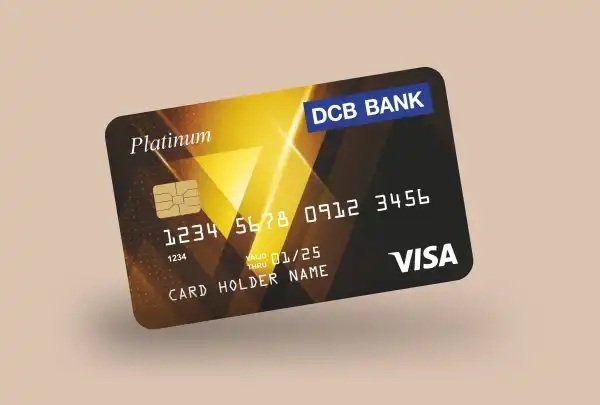
What Do You Need to Set Up a DCB Bank Debit Card?
Depending on the method used, keep the following ready:
- DCB Bank debit card
- Customer ID
- Mobile number registered with DCB Bank
- Debit card number
- Card expiry date
- CVV printed on the back of the card
- Access to the registered mobile number for OTP
- DCB Mobile Banking credentials if using the app
- Personal Internet Banking credentials if using NetBanking
For the online instant PIN-generation service, the debit card must already be in active status. If the card is temporarily blocked, it first needs to be unblocked. PIN regeneration is not available for a permanently blocked debit card.
How to Activate a New DCB Bank Debit Card
DCB Bank’s published debit-card material does not prescribe one compulsory activation route for every card variant. Instead, card setup depends on the status of the card and the PIN arrangement provided to the customer.
The practical process is:
- Check whether the card is already active.
- Generate or set the debit card PIN through one of DCB Bank’s supported channels.
- Complete a small domestic ATM or POS transaction.
- Confirm that the card and PIN are working.
- Separately enable online, international or contactless transactions if you need them.
DCB Bank’s current terms state that the use of the card constitutes acceptance of the debit-card terms. They also state that online and international transactions remain disabled at issuance/activation until the customer requests that they be enabled.
If a newly received card is showing as inactive and the online PIN-generation facility does not allow you to proceed, contact DCB Customer Care or your branch rather than repeatedly attempting PIN generation.
DCB Bank Debit Card PIN Generation Through the Official Website
DCB Bank provides a dedicated Generate PIN facility on its official website.
Follow these steps:
- Open the DCB Bank Generate PIN
- Enter your Customer ID.
- Enter the CAPTCHA displayed.
- Select Next.
- Enter the debit-card details requested on the following screen.
- Enter the card expiry details and CVV where requested.
- Complete OTP verification through your registered mobile number.
- Enter your preferred four-digit debit card PIN.
- Re-enter the PIN for confirmation.
- Submit the request.
After successful authentication, the new PIN is set for the debit card. DCB Bank specifically advises customers not to use personal information such as date of birth, vehicle number or commonly known numbers as the four-digit PIN.
Important Rules for DCB Bank Online PIN Generation
The bank places several conditions on its instant PIN-generation facility:
- The facility is available only for DCB debit cards.
- The debit card must be active.
- A temporarily blocked card must first be unblocked.
- PIN cannot be regenerated for a permanently blocked debit card.
- The registered mobile number must be updated for resident customers.
- NRI customers must have their email ID registered with DCB Bank.
- Wrong Customer ID, card details or OTP entered three times consecutively can lock the online PIN-generation process.
If the PIN-generation facility itself becomes locked after repeated wrong authentication attempts, DCB Bank advises customers to request a physical PIN mailer through Customer Care or a branch.
DCB Bank Debit Card PIN Generation Through Mobile Banking
DCB Bank’s current debit-card policy confirms that PIN generation is available through Mobile Banking.
The exact menu layout may change with updates to the DCB Mobile Banking app, but the process generally involves:
- Log in to the DCB Mobile Banking app.
- Open the debit-card or card-management section.
- Select the required debit card.
- Choose the PIN generation/reset option.
- Complete the required card verification.
- Authenticate using OTP or the security method displayed by the app.
- Enter a new four-digit PIN.
- Re-enter the PIN for confirmation.
- Submit the request.
DCB Bank has also implemented card-management functions in Mobile Banking such as ATM PIN generation, transaction-limit management, channel blocking/unblocking and international card controls.
DCB Bank Debit Card PIN Generation Through Internet Banking
Personal Internet Banking is another officially supported PIN-generation channel.
Follow these steps:
- Log in to DCB Personal Internet Banking.
- Open the card or debit-card services section.
- Select your debit card.
- Choose the PIN generation/reset option.
- Enter the card details requested.
- Complete the required authentication.
- Enter your new four-digit debit card PIN.
- Confirm the PIN.
- Submit the request.
DCB Bank’s current debit-card policy specifically confirms PIN generation through Internet Banking in addition to Mobile Banking and the bank’s website.
Because online interfaces can change, follow the exact debit-card menu displayed after login rather than relying on an old screenshot or third-party guide.
DCB Bank Debit Card PIN Generation Through Phone/Registered Mobile
DCB Bank’s debit-card policy also allows customers to call from their registered mobile number and generate or reset a new PIN through the bank’s automated or assisted service.
Call DCB Customer Care at:
022 6899 7777
or
040 6815 7777
Then:
- Complete customer authentication.
- Select the applicable debit-card service.
- Choose the PIN-generation or PIN-reset facility if offered by the IVR.
- Enter the card/customer information requested.
- Complete OTP or other verification.
- Follow the instructions to create or receive the new PIN.
Because DCB Bank may alter IVR menu numbering, it is safer to follow the current voice prompts instead of relying on fixed option numbers.
How to Change an Existing DCB Bank Debit Card PIN at an ATM
If you already know your current PIN and simply want to replace it, DCB Bank ATMs support PIN Change.
Follow these steps:
- Visit a DCB Bank ATM.
- Insert your debit card.
- Select the PIN-change service.
- Enter your current PIN.
- Enter the new four-digit PIN.
- Re-enter the new PIN for confirmation.
- Complete the request.
DCB Bank lists PIN change among the services available at its ATMs.
What If You Forget Your DCB Bank Debit Card PIN?
You do not need to keep guessing the old PIN.
DCB Bank allows PIN reset or regeneration through:
- Official Generate PIN website
- DCB Mobile Banking
- Personal Internet Banking
- Registered-mobile/phone service
- Customer Care/branch assistance where required
Use the PIN-regeneration process after authentication and create a new four-digit PIN.
If you enter incorrect card information, Customer ID or OTP three times in succession on the online PIN-generation facility, that PIN-generation access can itself become locked. In that situation, contact DCB Bank instead of continuing to retry.
How to Enable Online Transactions on a DCB Bank Debit Card
A debit card can work at an ATM or physical merchant outlet but still fail for an online purchase because online transactions are disabled at issuance/activation.
DCB Bank specifically requires customers to enable online usage after the card has been activated.
The bank provides card controls through its alternate banking channels. Customers can separately allow or restrict e-commerce transactions for:
- Domestic transactions
- International transactions
- Both domestic and international transactions
Use DCB Mobile Banking, Internet Banking, Customer Care or the available card-management channel to enable the required e-commerce facility and set an appropriate transaction limit.
How to Manage ATM and POS Transactions
DCB Bank allows debit-card usage to be independently controlled for ATM and POS transactions.
For ATM usage, customers can choose:
- Domestic only
- International only
- Both domestic and international
- Restrict both
For POS usage, similar domestic and international controls are available.
DCB Bank has also implemented ATM, POS and e-commerce limit management through digital banking channels.
How to Enable Contactless Transactions
If your DCB debit card supports contactless or tap-and-pay functionality, the contactless channel can be separately enabled or disabled.
DCB Bank’s debit-card policy provides a specific Tap and Pay/Contactless control under POS transactions.
Through the available card-management channel:
- Select your debit card.
- Open card controls.
- Select POS/contactless settings.
- Enable Tap and Pay.
- Set an appropriate transaction limit if the option is available.
- Confirm the request.
Contactless usage is available only on card variants that support the feature.
How to Enable International Transactions
International transactions are disabled when the card is issued/activated and must be enabled separately.
DCB Bank allows customers to control international ATM, POS and e-commerce usage independently.
Another important requirement is that PAN should be correctly updated in DCB Bank’s records before opting for international transactions.
Use Mobile Banking, Internet Banking, Customer Care or the applicable card-management channel to:
- Select the debit card.
- Enable international usage.
- Choose ATM, POS or online usage as required.
- Set suitable transaction limits.
- Confirm the request.
Keep international transactions disabled when you do not need them.
What Should You Do After Generating the DCB Bank Debit Card PIN?
After successfully setting the PIN, make a small ATM or merchant transaction to make sure the card works correctly.
You should also:
- Check whether online transactions are enabled before shopping online.
- Enable international usage only when necessary.
- Review ATM, POS and e-commerce limits.
- Enable contactless payments only if required.
- Never share your PIN with anyone, including someone claiming to be bank staff.
- Never disclose your OTP or CVV.
- Avoid generating or resetting a PIN over public Wi-Fi.
DCB Bank specifically advises customers not to share their PIN even with DCB Bank staff and recommends avoiding public networks while generating or resetting it.
What If DCB Bank Debit Card PIN Generation Fails?
Check the following:
- The debit card is active.
- The card has not been permanently blocked.
- A temporarily blocked card has first been unblocked.
- Your Customer ID is correct.
- Your registered mobile number is updated.
- The card expiry details and CVV are correct.
- You are entering the latest OTP.
- You have not already exhausted the three permitted authentication attempts on the online facility.
If the problem continues, contact DCB Bank Customer Care at:
022 6899 7777
040 6815 7777
DCB Bank currently lists both numbers for debit-card and general customer assistance.
If the debit card is lost or stolen, report it immediately instead of simply changing the PIN. DCB Bank advises customers not to use a card again once its loss has been reported, even if it is later found.
FAQs
1. Can I generate a DCB Bank debit card PIN without visiting an ATM?
Yes. DCB Bank’s current debit-card policy allows PIN generation through Mobile Banking, Internet Banking, the bank’s website and registered-mobile/phone facilities. Its official online Generate PIN service lets eligible customers set or change a four-digit debit-card PIN after authentication.
2. Why does my DCB Bank debit card work at an ATM but not for online purchases?
Online transactions are disabled at the time of issuance/activation. After activating the card, you must separately enable e-commerce usage through the bank’s card controls. Domestic and international online transactions can also be controlled independently.
3. Can I regenerate the PIN if my DCB debit card is temporarily blocked?
Not through the instant online facility until the card is unblocked. DCB Bank states that a temporarily blocked card must first be unblocked before PIN regeneration can be initiated. PIN regeneration is not available for a permanently blocked debit card.
4. What happens if I enter incorrect details three times while generating the DCB debit card PIN online?
DCB Bank states that the PIN-generation facility gets locked if an incorrect Customer ID, debit-card details or OTP is entered three times consecutively. In that situation, the bank advises customers to request a physical PIN mailer through Customer Care or visit a DCB Bank branch instead of continuing to retry.