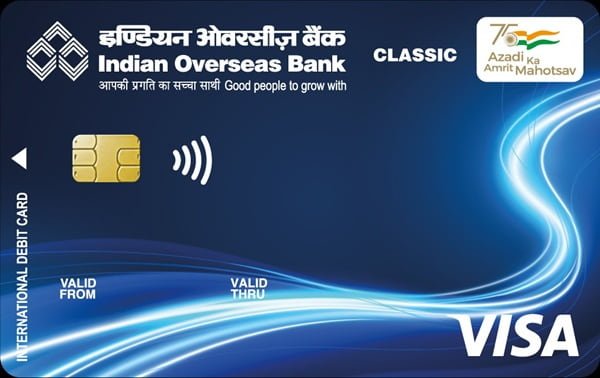
After receiving a new Indian Overseas Bank debit card, you need to make sure the card is active and set its four-digit ATM PIN before using it for regular transactions. Indian Overseas Bank uses a Green PIN facility that allows customers to choose their own debit card PIN instead of depending on a physical PIN mailer.
IOB provides debit-card PIN generation through its ATMs, IOB Mobile Banking and Internet Banking. Customers can also reset the PIN through digital banking if they have forgotten it. A branch visit is normally required only when the card itself needs branch activation, the registered mobile number is incorrect, or the self-service process cannot be completed.
Activation and PIN generation are separate steps. Indian Overseas Bank states that personalised debit cards are generally dispatched in inactive status. An inactive card can be activated through Internet Banking, an IOB ATM or the branch. For cards collected through certain branch/mobile-banking issuance processes, the branch activates the card when handing it over. Green PIN can be set only after the card has become active.
What Do You Need to Activate an Indian Overseas Bank Debit Card?
Keep the following ready:
- Indian Overseas Bank debit card
- Mobile number registered with IOB
- Access to the registered mobile for receiving OTP
- IOB Mobile Banking access if using the app
- IOB Internet Banking credentials if using NetBanking
- Debit card number and expiry date for digital PIN generation
The registered mobile number is especially important because the Green PIN process sends a one-time password to that number.
How to Activate a New Indian Overseas Bank Debit Card
Indian Overseas Bank issues many personalised debit cards in inactive status for security. Before generating the PIN, make sure that the card has been activated.
IOB states that an inactive debit card can be activated through:
- An Indian Overseas Bank branch
- IOB Internet Banking
- An IOB ATM terminal
If the debit card was applied for through IOB Mobile Banking and collected from the branch, the bank’s current Mobile Banking FAQ states that the branch activates the card when it is handed over to the customer.
Once the card becomes active, proceed with Green PIN generation.
Indian Overseas Bank Debit Card Green PIN Generation Through ATM
The IOB ATM Green PIN process is one of the simplest ways to set the PIN for a newly activated card.
Step 1: Receive the Green PIN OTP
- Visit an Indian Overseas Bank ATM.
- Insert your active IOB debit card.
- The ATM will initiate the Green PIN process.
- A six-digit OTP will be sent to your registered mobile number.
- Remove the card and check the OTP received on your phone.
IOB states that the Green PIN OTP is normally delivered within about one minute.
Step 2: Set the Permanent PIN
After receiving the OTP:
- Insert the debit card again at the IOB ATM.
- Enter the six-digit OTP when prompted.
- After successful OTP validation, the ATM will ask you to choose a PIN.
- Enter a four-digit PIN of your choice.
- Re-enter the same four-digit PIN for confirmation.
- Complete the process.
Once the new PIN is successfully created, the debit card can be used for permitted transactions.
How Long Is the IOB Green PIN OTP Valid?
This is particularly important with Indian Overseas Bank.
The six-digit Green PIN OTP is valid for only 3 minutes from delivery and can be used only once. The Green PIN process also works only at Indian Overseas Bank ATMs.
Therefore, remain near the ATM after requesting the OTP and complete the PIN-setting process immediately.
If the OTP expires, generate a fresh OTP and repeat the process.
Indian Overseas Bank Debit Card PIN Generation Through IOB Mobile
IOB Mobile Banking also allows customers to generate or reset the PIN for an active debit card.
Follow these steps:
- Log in to the IOB Mobile
- Select Card Services.
- Choose Debit Card Services.
- Select the account linked with your debit card.
- Choose Generate/Reset Debit Card PIN.
- Enter the 16-digit debit card number.
- Enter the debit card expiry month and year.
- Enter your preferred four-digit ATM PIN.
- Re-enter the same PIN for confirmation.
- A six-digit OTP will be sent to your registered mobile number.
- Enter the OTP.
- Enter your Mobile Banking MPIN.
- Submit the request.
After successful validation, IOB Mobile displays confirmation that the ATM PIN has been generated successfully.
The Generate/Reset PIN facility is available only for cards that are in Active or eligible upgraded status.
How to Change an Existing Debit Card PIN Through IOB Mobile
If you know your existing PIN but want to replace it with another PIN:
- Log in to IOB Mobile.
- Go to Card Services.
- Select Debit Card Services.
- Select your account and debit card.
- Choose Change Debit Card PIN.
- Enter the 16-digit card number.
- Enter the expiry month and year.
- Enter the old PIN.
- Enter your new four-digit PIN.
- Re-enter the new PIN.
- Complete OTP and MPIN authentication.
- Submit the request.
The new PIN becomes usable after successful processing.
Indian Overseas Bank Debit Card PIN Generation Through Internet Banking
Indian Overseas Bank also lists Net Banking as an official Green PIN/PIN reset channel.
The exact screen layout may change, but the general process is:
- Log in to IOB Internet Banking.
- Open IOB Cards or Debit Card Services.
- Select the debit card linked with your account.
- Choose the PIN generation/reset option.
- Enter the requested card details.
- Create your new four-digit PIN.
- Complete OTP and Internet Banking authentication.
- Submit the request.
IOB’s official debit-card FAQ confirms that Green PIN generation is available through Net Banking, Mobile Banking and ATM.
What If You Forget Your IOB Debit Card PIN?
If you have forgotten the old PIN, do not repeatedly try different numbers.
Indian Overseas Bank allows customers to reset the debit card PIN through:
- IOB Mobile Banking
- IOB Internet Banking
- Green PIN facility
- Branch assistance where required
Through IOB Mobile, use:
Card Services → Debit Card Services → Generate/Reset Debit Card PIN
After card verification, OTP and MPIN authentication, you can choose a new PIN without knowing the old one.
What Happens After Repeated Wrong PIN Attempts?
Indian Overseas Bank states that if a customer enters the wrong PIN more than five times, the debit card may become blocked.
If this happens, the card can be reset through the branch or by using the PIN RESET facility available through Internet Banking or Mobile Banking.
Avoid continuing to guess the PIN once you realise you have forgotten it.
How to Enable Online Transactions on an IOB Debit Card
A newly issued or reissued IOB debit card is enabled initially for domestic contact-based ATM and POS transactions. E-commerce, contactless and international transaction facilities are disabled by default and must be enabled separately if required.
Through IOB Mobile
- Log in to IOB Mobile.
- Select Card Services.
- Choose Debit Card Services.
- Select Manage Debit Card Limit & Channel Update.
- Select Ecom.
- Choose the domestic limit setting.
- Enable the e-commerce channel.
- Set an appropriate transaction limit.
- Select Submit.
- Review the changes.
- Select Confirm.
- Enter your MPIN.
The online transaction facility becomes available according to the updated card settings.
How to Manage Debit Card Transactions Through IOB Internet Banking
Internet Banking provides similar card controls.
Follow these steps:
- Log in to IOB Internet Banking.
- Select IOB Cards.
- Expand IOB Debit Card.
- Select Switch On/Off Channels.
- Choose the account linked with the card.
- Select the required debit card.
- Enable or disable ATM, POS, e-commerce, contactless or other available channels.
- Enter your Fund Transfer PIN.
- Enter the OTP received on your registered mobile number.
- Submit the request.
To modify individual limits, select Set/Modify Daily Limits under the IOB Debit Card section.
How to Enable Contactless Transactions
Contactless usage is disabled by default on newly issued cards.
Through IOB Mobile:
- Open Card Services.
- Select Debit Card Services.
- Choose Manage Debit Card Limit & Channel Update.
- Select Contactless.
- Enable the facility.
- Set the required limit.
- Review the request.
- Confirm using your MPIN.
Contactless functionality is available only on debit-card variants that support it.
How to Enable International Transactions
International transaction usage is also disabled by default on newly issued cards.
Through IOB Mobile:
- Open Card Services.
- Select Debit Card Services.
- Choose Manage Debit Card Limit & Channel Update.
- Select the required ATM, POS or e-commerce channel.
- Choose International Limit.
- Enable the required facility.
- Set an appropriate limit.
- Review the change.
- Confirm using MPIN.
Internet Banking customers can manage the same facility through IOB Cards → IOB Debit Card → Switch On/Off Channels and Set/Modify Daily Limits.
International usage is available only on supported debit-card variants and networks.
What Should You Do After Generating the IOB Debit Card PIN?
Once the PIN has been successfully generated, complete a small ATM or POS transaction to confirm that the card is working.
You should also:
- Check whether the e-commerce channel is enabled before shopping online.
- Enable international transactions only when needed.
- Set sensible ATM, POS and online limits.
- Keep contactless usage according to your requirements.
- Never disclose your debit card PIN, OTP or MPIN.
- Block or hotlist the card immediately if it is lost or stolen.
What If IOB Debit Card PIN Generation Fails?
Check the following:
- The debit card has already been activated.
- Your current mobile number is correctly registered with IOB.
- You are using an IOB ATM for ATM Green PIN generation.
- The six-digit OTP has not crossed its three-minute validity period.
- You are entering the latest OTP.
- The debit card number and expiry date are correct.
- The card is in Active status when using Mobile Banking.
If you do not receive the Green PIN OTP, IOB notes that the problem may be caused by weak mobile network coverage or a mismatch between the mobile number registered in the bank’s records and the number registered for the card.
For customer assistance, Indian Overseas Bank currently lists:
1800 890 4445
1800 425 4445
For digital banking complaints:
044-24371120
For overseas customers/global users:
+91-40-35293602
+91-40-24787010
FAQs
1. Can I generate an Indian Overseas Bank debit card PIN without visiting a branch?
Yes. IOB allows Green PIN/PIN generation through its ATM, Mobile Banking and Internet Banking channels. However, the debit card must first be active. If a newly issued card is still in inactive status, activate it through the applicable IOB channel or branch before generating the PIN.
2. How long is the IOB Green PIN OTP valid?
The six-digit Green PIN OTP is valid for only three minutes from delivery and can be used only once. The ATM Green PIN process works only at Indian Overseas Bank ATMs, so complete the PIN setup immediately after receiving the OTP.
3. Why is my new IOB debit card working at an ATM but not for online payments?
New and reissued IOB debit cards are initially enabled for domestic ATM and contact-based POS transactions. E-commerce, contactless and international transactions are disabled by default. Enable Ecom through IOB Mobile or Internet Banking and set an appropriate transaction limit before making an online payment.
4. What should I do if my IOB debit card gets blocked after repeated wrong PIN attempts?
If you have entered the wrong PIN more than five times, IOB states that the card can become blocked. Instead of trying additional PINs, use the PIN RESET facility through Internet Banking or Mobile Banking, or contact your branch if the digital reset does not work.