After receiving a new YES BANK debit card, the first important step is to generate its four-digit PIN. The PIN is required for ATM cash withdrawals and PIN-authenticated transactions at merchant outlets. YES BANK provides several ways to generate or reset the debit card PIN, including a YES BANK ATM, the IRIS by YES BANK Mobile Banking app, YES ONLINE NetBanking and the bank’s online pre-login PIN-generation facility.
There is an important point about debit card activation. YES BANK states that newly issued debit cards are activated at the time of issuance for domestic ATM cash withdrawals and purchases at physical Point-of-Sale terminals. However, domestic online transactions, contactless payments and international transactions are disabled or have their per-transaction limits set to zero by default. These facilities need to be enabled separately if you want to use them.
Therefore, for normal use of a new YES BANK debit card, the main customer action is to generate the four-digit PIN and then manage any additional transaction channels required.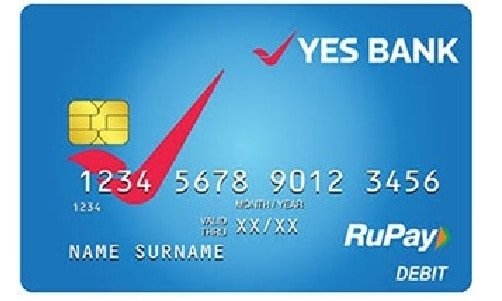
What Do You Need to Set Up a YES BANK Debit Card?
Depending on the method you choose, keep the following ready:
- YES BANK debit card
- Customer ID
- Date of birth registered with YES BANK
- Mobile number registered with the bank
- Access to the registered mobile number for OTP
- IRIS by YES BANK MPIN if using Mobile Banking
- YES ONLINE login credentials if using NetBanking
The debit card PIN is a four-digit number. YES BANK allows customers to choose their own four-digit PIN during the generation or regeneration process.
How to Activate a New YES BANK Debit Card
A separate activation request is generally not required for basic domestic ATM and contact-based POS usage because YES BANK states that these facilities are enabled when a new debit card is issued.
However, you still need to create the debit card PIN before making PIN-based transactions.
A practical first-time setup is:
- Generate the four-digit debit card PIN using an ATM, IRIS, YES ONLINE or the YES BANK website.
- Visit an ATM or physical merchant outlet.
- Insert the card.
- Enter the newly generated PIN.
- Complete an eligible transaction.
Once the card and PIN work successfully, you can continue using the card for permitted domestic ATM and POS transactions.
If you want to shop online, make contactless payments or use the card internationally, enable those facilities separately through the available card controls.
YES BANK Debit Card PIN Generation Through an ATM
YES BANK allows customers to generate a new debit card PIN directly at its ATM.
Follow these steps:
- Visit a YES BANK ATM.
- Insert your debit card.
- Select New PIN Generation.
- Enter your date of birth in DDMMYYYY
- Enter the mobile number registered with YES BANK.
- Complete the verification requested by the ATM.
- An OTP will be sent to your registered mobile number.
- Enter the OTP at the ATM.
- Enter your preferred four-digit debit card PIN.
- Re-enter the same PIN.
- Select Confirm.
Once the request is successfully processed, the new PIN becomes your debit card ATM/POS PIN.
YES BANK Debit Card PIN Generation Through IRIS Mobile Banking
IRIS by YES BANK is the bank’s current Mobile Banking application. Customers who already use IRIS can generate their debit card PIN directly from the app.
Follow these steps:
- Open IRIS by YES BANK.
- Log in to your account.
- Go to Cards.
- Select Debit Card.
- Choose Manage Card.
- Select Generate PIN.
- Enter the new four-digit ATM PIN you want to use.
- Enter your IRIS MPIN.
- Select Proceed.
- Complete the request.
After successful authentication, the new PIN is set for the debit card.
This method is convenient because you do not have to visit an ATM merely to generate a new PIN.
YES BANK Debit Card PIN Generation Online Without NetBanking Login
YES BANK also provides a pre-login PIN-generation facility on its official website. This is useful for customers who have the card but do not want to log in to YES ONLINE.
Follow these steps:
- Visit the official YES BANK website.
- Select Login.
- Choose the option to Generate/Regenerate Debit Card PIN.
- Accept the applicable terms and conditions.
- Enter your Customer ID.
- Enter your date of birth.
- Select or enter the required debit card details.
- Enter your debit card number when requested.
- Enter the new four-digit PIN.
- Re-enter the PIN for confirmation.
- Select Next.
- An OTP will be sent to your registered mobile number.
- Enter the OTP.
- Complete the verification.
The PIN is set after successful OTP authentication. YES BANK’s current official PIN instructions specifically provide this online PIN-generation method.
YES BANK Debit Card PIN Generation Through YES ONLINE NetBanking
Customers registered for YES ONLINE can generate or reset their debit card PIN after logging in.
Follow these steps:
- Log in to YES ONLINE.
- Open the main menu.
- Select Cards.
- Choose Debit Card.
- Open the Debit Card Dashboard or debit-card services.
- Select Reset PIN or Change PIN, depending on the interface displayed.
- Select the required debit card.
- Enter your new four-digit PIN.
- Re-enter the PIN for confirmation.
- Continue to authentication.
- Enter the OTP sent to your registered mobile number.
- Submit the request.
The new PIN is set after successful OTP verification. YES BANK’s official Internet Banking FAQ confirms that customers can change a debit-card PIN through the Debit Card Dashboard and authenticate the request with an OTP.
Can You Generate a YES BANK Debit Card PIN If You Forgot the Old PIN?
Yes. You do not need to keep trying the old PIN.
Use any of the supported PIN regeneration methods:
- IRIS by YES BANK
- YES ONLINE
- YES BANK ATM
- YES BANK website pre-login PIN generation
The digital facilities specifically provide Generate/Regenerate Debit Card PIN or Reset PIN options, allowing you to create a fresh PIN after successful customer verification.
How to Enable Online Transactions on a YES BANK Debit Card
A new YES BANK debit card may work perfectly at an ATM or physical store but still be declined on an e-commerce website or app.
This does not necessarily mean there is a problem with the card.
YES BANK states that domestic e-commerce per-transaction limits on newly issued or reissued debit cards are disabled by default. The online transaction facility must therefore be enabled and an appropriate transaction limit set before the card can be used for online purchases.
You can manage these settings using YES ONLINE and supported YES BANK card-management channels.
Through YES ONLINE:
- Log in to YES ONLINE.
- Open the menu.
- Select Debit Cards.
- Open Debit Card Dashboard.
- Select the relevant card.
- Open the card limit or usage-management option.
- Enable Domestic E-commerce
- Set the required per-transaction limit.
- Complete the authentication.
- Confirm the change.
Do not set an unnecessarily high limit. Choose an amount suitable for your normal online spending.
How to Manage YES BANK Debit Card Limits
YES BANK allows customers to manage transaction limits separately for different types of debit-card usage.
These include:
- ATM cash withdrawals
- Point-of-Sale purchases
- E-commerce transactions
- Contactless transactions
- International ATM transactions
- International POS transactions
- International e-commerce transactions
YES BANK states that transaction limits can be modified or reset according to the maximum daily limit applicable to the specific card variant.
Different YES BANK debit-card variants have different maximum ATM, POS and e-commerce limits, so customers should check the limits applicable to their particular card rather than assuming that every YES BANK debit card has the same limit.
How to Enable Contactless Transactions on a YES BANK Debit Card
YES BANK debit cards that support contactless payments can be used by tapping the card on a compatible POS terminal.
However, contactless usage on newly issued or reissued cards is disabled by default as part of the bank’s card-security controls.
To use tap-and-pay:
- Log in to the applicable YES BANK card-management channel.
- Select the debit card.
- Open card controls or transaction limits.
- Enable Contactless
- Set the required contactless limit.
- Authenticate the request.
- Confirm the change.
Contactless transactions are available only on cards that support the facility.
How to Enable International Transactions on a YES BANK Debit Card
International usage is also disabled by default on newly issued YES BANK debit cards.
YES BANK states that international usage can be activated using:
- IRIS by YES BANK
- YES ONLINE NetBanking
- Customer Care from the registered mobile number
International usage also depends on the debit-card variant and applicable regulatory requirements.
If using YES ONLINE or IRIS:
- Select your debit card.
- Open card management or transaction controls.
- Select International Usage.
- Enable the transaction channels you require.
- Set suitable international ATM, POS and e-commerce limits.
- Authenticate and confirm the request.
For better card security, international transactions can be kept disabled when they are not required.
What Should You Do After Generating the YES BANK Debit Card PIN?
After generating the PIN, make a small ATM or merchant transaction to confirm that the PIN is working correctly.
You should also:
- Check online transaction settings before making an e-commerce purchase.
- Enable international usage only when required.
- Keep transaction limits appropriate for your regular spending.
- Enable contactless transactions only if you intend to use them.
- Never share your PIN, OTP or banking password with anyone.
YES BANK specifically warns customers not to disclose their User ID, password, OTP, PIN or similar confidential credentials over phone, email or other channels.
What If YES BANK Debit Card PIN Generation Fails?
If you cannot generate or reset your debit card PIN, check whether:
- Your mobile number is registered with YES BANK.
- You are entering your date of birth correctly.
- The Customer ID is correct.
- You are selecting the correct debit card.
- You are entering the latest OTP.
- Your IRIS MPIN is correct when using Mobile Banking.
- The debit card has not been permanently blocked or hotlisted.
If the problem continues, contact YES BANK Customer Care.
The current general banking numbers are:
1800 1200 – Toll-free
1860 210 1200 – Charges may apply as per the service provider
For customers calling from outside India, YES BANK currently lists +91 22 50795 101.
If your debit card has been lost or stolen, do not simply attempt to regenerate the PIN. Block or hotlist the card immediately through IRIS, YES ONLINE or Customer Care.
FAQs
1. Do I need to separately activate a new YES BANK debit card?
For basic domestic usage, normally no separate activation request is required. YES BANK states that newly issued debit cards are activated for domestic ATM cash withdrawals and contact-based purchases at merchant POS terminals. You still need to generate the card’s four-digit PIN before making PIN-authenticated transactions. Online, contactless and international transaction facilities have to be enabled separately.
2. Can I generate a YES BANK debit card PIN without visiting an ATM?
Yes. You can generate the four-digit PIN through IRIS by YES BANK, YES ONLINE NetBanking or the official YES BANK website’s pre-login Generate/Regenerate Debit Card PIN facility. An ATM is therefore not compulsory for PIN generation.
3. Why is my new YES BANK debit card working at an ATM but not for online payments?
Domestic online or e-commerce transactions are disabled by default on newly issued and reissued debit cards. You need to enable the e-commerce facility and set a per-transaction limit through the bank’s card-management controls before using the card for online purchases.
4. Can I reset my YES BANK debit card PIN if I have forgotten it?
Yes. YES BANK provides PIN regeneration and reset facilities through IRIS, YES ONLINE, YES BANK ATMs and its online pre-login PIN-generation service. After successful customer authentication, you can choose a new four-digit debit card PIN without repeatedly trying the forgotten PIN.