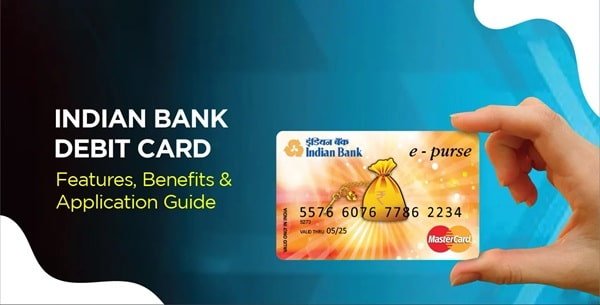
When you receive a new Indian Bank debit card, the important first step is to activate the card and set its ATM PIN before using it for regular transactions. Indian Bank provides self-service options through its ATMs, the IndSMART Mobile Banking app and Internet Banking, so customers generally do not need to visit a branch simply to generate a debit card PIN.
Indian Bank uses the Green PIN system for debit-card PIN generation. Instead of sending a printed PIN mailer, the bank allows customers to authenticate themselves electronically and choose their own PIN. Green PIN generation is available through Indian Bank ATMs, Mobile Banking and Internet Banking.
Indian Bank currently states that debit cards are enabled at issuance for ATM and Point-of-Sale transactions within India. However, a new card still needs to be activated/set up and its PIN generated before normal PIN-based use. Online transactions and international transactions are controlled separately and can be enabled when required.
What Do You Need to Activate an Indian Bank Debit Card?
Keep the following ready before starting:
- Your Indian Bank debit card
- Bank account linked with the debit card
- Mobile number registered with Indian Bank
- Access to the registered mobile for receiving OTPs
- IndSMART Mobile Banking access if using the app
- Indian Bank Internet Banking credentials if using the online method
- Debit card expiry details when requested
Your registered mobile number is particularly important because Green PIN and several debit-card services use OTP-based verification.
How to Activate a New Indian Bank Debit Card
Indian Bank’s current IndSMART platform specifically provides a Debit Card Activation facility. Customers can therefore activate a newly issued card digitally instead of depending only on a branch visit.
Through the IndSMART App
Follow these steps:
- Log in to the IndSMART Mobile Banking app.
- Open the Debit Card option under Cards or Quick Actions.
- Select the newly issued debit card.
- Open the available Debit Card Activation
- Verify the card and linked-account information displayed.
- Complete the authentication requested by the app.
- Submit the activation request.
- After activation, proceed to Set/Reset Card PIN to create your debit card PIN.
Indian Bank’s current debit-card dashboard also provides separate options for Green PIN generation, PIN reset, card locking, transaction-channel management and limits.
You can then make a small ATM or POS transaction to confirm that the card and PIN are functioning correctly.
Indian Bank Debit Card PIN Generation Through an ATM
Indian Bank’s Green PIN facility allows a customer to generate the debit-card PIN at an Indian Bank ATM.
The Green PIN process essentially has two stages: obtaining an OTP and using that OTP to set your own PIN. Indian Bank’s official information states that Green PIN is sent to the registered mobile number and can then be validated at an Indian Bank ATM to set the permanent PIN.
Step 1: Generate the Green PIN OTP
- Visit an Indian Bank ATM.
- Insert your new debit card.
- Select the Green PIN or Generate/Set PIN option displayed on the ATM.
- Choose the option to generate the Green PIN/OTP.
- Enter the requested account information.
- Verify the details displayed on the ATM.
- Confirm the request.
- An OTP/Green PIN will be sent to the mobile number registered with Indian Bank.
Step 2: Set the Permanent Debit Card PIN
After receiving the OTP:
- Insert the debit card into an Indian Bank ATM again.
- Select Green PIN/Generate or Set PIN.
- Choose Set PIN.
- Enter the requested verification information.
- Enter the Green PIN/OTP received on your registered mobile number.
- Enter the new debit card PIN you want to use.
- Re-enter the PIN for confirmation.
- Complete the transaction.
Once the ATM confirms that the PIN has been successfully set, you can use the card for ATM withdrawals and other permitted PIN-based transactions.
Indian Bank Debit Card PIN Generation Through IndSMART
The current IndSMART app provides both Green PIN Generation/Validation and Debit Card Set/Reset PIN facilities.
To set or reset your PIN:
- Log in to the IndSMART app.
- Select Debit Card from the Cards section or Quick Actions.
- Select the required debit card.
- Under Card Actions, choose Set/Reset Card PIN.
- Complete Green PIN generation or validation if the app requests it.
- Enter the OTP sent to your registered mobile number where required.
- Enter the new debit card PIN.
- Re-enter it for confirmation.
- Authenticate the request using the security method displayed by IndSMART.
- Submit the request.
After successful authentication, the new PIN is linked to your debit card.
The current IndSMART debit-card dashboard also includes Change Card PIN separately. Therefore, if you know your existing PIN and simply want to change it, you can use the Change Card PIN option instead of Set/Reset PIN.
Indian Bank Debit Card PIN Generation Through Internet Banking
Indian Bank also provides debit-card PIN generation through Internet Banking. The bank has officially confirmed Green PIN availability through its Internet Banking channel.
The current Internet Banking interface provides debit-card functions under the Cards section.
Follow these steps:
- Log in to Indian Bank Internet Banking.
- Open Cards.
- Select Debit Card.
- Choose the debit card linked with your account.
- Open Set/Reset Card PIN.
- Enter the card information requested on the screen.
- Complete Green PIN/OTP verification.
- Enter your new debit card PIN.
- Re-enter it for confirmation.
- Complete the required Internet Banking authentication.
- Submit the request.
Indian Bank’s current Internet Banking debit-card dashboard includes Change Card PIN, Set/Reset Card PIN, Enable/Disable Transactions, Manage Limits, Lock/Unlock Card and other card controls.
How to Enable Online Transactions on an Indian Bank Debit Card
A new Indian Bank debit card may work at an ATM or physical merchant outlet but still be declined for online purchases.
This is because Indian Bank states that cards are initially enabled for ATM and POS usage within India, while the online transaction facility has to be enabled separately if required.
Through IndSMART
- Log in to IndSMART.
- Select Debit Card.
- Select the required card.
- Choose Enable/Disable Transactions under Card Actions.
- Select Domestic
- Switch E-Commerce
- Review the change.
- Authenticate using your Transaction PIN.
- Confirm the request.
The same section can be used to manage ATM withdrawals, POS, contactless/NFC and other supported transaction channels.
How to Enable Online Transactions Through Internet Banking
Indian Bank also allows online card usage to be enabled through Internet Banking.
- Log in to Indian Bank Internet Banking.
- Select Cards.
- Choose Debit Card.
- Select the required debit card.
- Click Enable/Disable Transactions.
- Select Domestic
- Enable E-Commerce.
- Review and confirm the change.
- Complete the required authentication.
Indian Bank specifically identifies Internet Banking’s Value Added Services/Card Services and IndSMART’s Cards Menu as channels for enabling online debit-card transactions.
How to Enable Contactless Transactions on an Indian Bank Debit Card
If your Indian Bank debit card supports NFC or tap-and-pay but contactless payments are not working, check the card controls.
Through IndSMART:
- Open Debit Card.
- Select your card.
- Choose Enable/Disable Transactions.
- Select the required domestic or international transaction category.
- Switch Contactless Purchase-NFC
- Confirm the changes through Transaction PIN authentication.
You can also change the contactless transaction limit through Manage Limits.
The facility appears only on debit cards that support NFC/contactless transactions.
How to Enable International Transactions
International usage is not automatically available on every Indian Bank debit card.
The bank states that international transaction facilities are available only on selected card variants and may be enabled on specific request.
If your card supports international usage:
Through IndSMART
- Log in to IndSMART.
- Select Debit Card.
- Choose your card.
- Open Enable/Disable Transactions.
- Select International.
- Enable the required ATM, POS or e-commerce channels.
- Set appropriate limits under Manage Limits.
- Authenticate and confirm the request.
International usage can similarly be managed through Indian Bank Internet Banking or by contacting the bank/branch where applicable.
What Should You Do After Generating the Indian Bank Debit Card PIN?
Once the PIN has been generated successfully, make a small ATM or POS transaction to confirm that your card is working properly.
You should also:
- Enable online payments only if you require them.
- Check whether international usage is necessary before enabling it.
- Set sensible ATM, POS and e-commerce limits.
- Enable contactless payments only if your card supports the facility.
- Keep your debit card PIN confidential.
- Never share your OTP, CVV, card expiry date, Internet Banking password or Transaction PIN.
Indian Bank clearly warns customers that bank officials will never ask for debit-card PINs, OTPs, CVVs or other confidential banking credentials.
What If Indian Bank Debit Card PIN Generation Fails?
If PIN generation is unsuccessful, check whether:
- Your mobile number is registered with Indian Bank.
- The debit card is correctly linked with your account.
- The debit card has been activated.
- You are entering the latest OTP received from the bank.
- Your card has not been locked or hotlisted.
- The correct card is selected in IndSMART or Internet Banking.
If the card has been locked temporarily, IndSMART and Internet Banking provide Lock/Unlock Card facilities. A lost or stolen card should be hotlisted instead of merely unlocked or repeatedly tested.
If the problem continues, contact Indian Bank’s current National Helpline:
1800 1700
Indian Bank lists 1800 1700 as its official national toll-free customer-care number. For NR customers, the bank currently lists +91 22 4444 2888 as its 24×7 non-toll-free customer-care number.
FAQs
1. Can I activate an Indian Bank debit card without visiting a branch?
Yes. Indian Bank’s current IndSMART app includes a Debit Card Activation facility along with Green PIN generation and PIN reset. Customers can therefore activate and manage a newly issued debit card digitally. Green PIN can also be generated through Indian Bank ATMs and Internet Banking.
2. Why does my Indian Bank debit card work at an ATM but not for online shopping?
Online transactions may not be enabled. Indian Bank states that debit cards are initially enabled for domestic ATM and POS transactions, while online usage can be enabled separately through Internet Banking, the IndSMART Cards Menu or the branch.
3. Can I reset my Indian Bank debit card PIN if I have forgotten the old PIN?
Yes. You can use Set/Reset Card PIN through IndSMART or Internet Banking, or generate a new Green PIN through an Indian Bank ATM. Indian Bank’s ATM FAQ also confirms that customers who forget their PIN can generate a Green PIN through an Indian Bank ATM.
4. What should I do if my Indian Bank debit card becomes blocked after wrong PIN attempts?
Do not continue entering different PINs. First use the bank’s PIN reset facility if the problem is only a forgotten PIN. If the card itself is locked, check the Lock/Unlock Card facility in IndSMART or Internet Banking. If you cannot restore access, contact Indian Bank at 1800 1700 for assistance. A lost or stolen card should be hotlisted immediately rather than unlocked.