Karur Vysya Bank follows a Green PIN-based system for setting up its physical debit cards. A newly issued KVB debit card is not considered ready for normal use until the customer creates the debit card PIN through a KVB ATM or KVB Cash Recycler.
The process is relatively simple because the PIN is generated electronically using the customer’s registered mobile number instead of depending only on a conventional PIN mailer. KVB also provides PIN reset and detailed debit-card controls through its KVB DLite Mobile Banking application.
Another important point is that card activation does not automatically switch on every type of transaction. KVB currently keeps e-commerce, international and contactless transactions disabled when debit cards are issued. Customers can enable these facilities separately through KVB DLite, Internet Banking or other supported bank channels when required.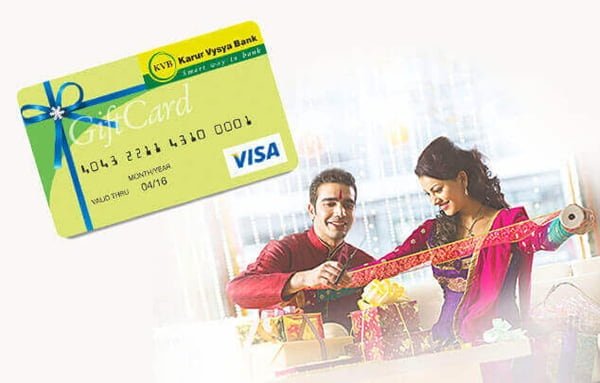
What Do You Need to Activate a Karur Vysya Bank Debit Card?
Keep the following ready before starting:
- Karur Vysya Bank debit card
- Mobile number registered with KVB
- Access to the registered mobile for receiving OTP
- KVB Customer ID where requested
- KVB DLite access if using Mobile Banking after activation
- Internet Banking credentials if managing debit-card controls online
The registered mobile number is particularly important because KVB’s Green PIN facility uses OTP authentication.
How to Activate a New Karur Vysya Bank Debit Card
KVB’s current official debit-card instructions state that customers have to set the Green PIN at a KVB ATM or KVB Cash Recycler to activate a new debit card.
A practical activation process is:
- Visit a KVB ATM or KVB Cash Recycler.
- Insert the newly issued debit card.
- Select the available Green PIN/PIN-generation facility.
- Follow the cardholder-verification instructions displayed on the machine.
- An OTP will be sent to the mobile number registered with KVB as part of the Green PIN process.
- Complete the OTP authentication.
- Create a new four-digit debit-card PIN.
- Confirm the PIN.
- Complete the process displayed on the ATM or Cash Recycler.
- After successful PIN generation, the debit card becomes activated for use.
KVB’s official card-usage guidelines clearly state that after generating the debit-card PIN, the card is activated.
KVB Debit Card Green PIN Generation Through ATM
Karur Vysya Bank provides Green PIN generation through:
- KVB ATMs
- KVB Cash Recyclers
The bank confirms that Green PIN generation is based on an OTP sent to the customer’s registered mobile number.
The general procedure is:
- Insert the KVB debit card at a KVB ATM or Cash Recycler.
- Select the Green PIN or debit-card PIN-generation option displayed.
- Complete the customer/card verification requested by the machine.
- Receive the OTP on your registered mobile number.
- Enter the OTP when requested.
- Create a new four-digit debit-card PIN.
- Confirm the same PIN.
- Complete the request.
KVB does not currently publish a detailed public screen-by-screen ATM menu sequence on its main debit-card page, so customers should follow the prompts displayed on the ATM or Cash Recycler rather than relying on an older menu layout.
After successful Green PIN generation, the card becomes active.
Can You Generate the First KVB Green PIN at Another Bank’s ATM?
For initial activation, KVB’s official instructions specifically direct customers to use a KVB ATM or KVB Cash Recycler.
Other-bank ATMs can subsequently be used for supported services such as cash withdrawal, balance enquiry, mini statement and PIN change where the existing PIN is known.
Therefore, use a KVB ATM or Cash Recycler when activating a newly issued card and generating its first Green PIN.
KVB Debit Card PIN Set or Reset Through KVB DLite
KVB DLite provides an instant debit-card PIN set/reset facility.
The bank’s current Mobile Banking FAQ specifically confirms that customers can use Set/Reset PIN to choose their own ATM PIN instantly.
For an already registered KVB DLite user:
- Log in to KVB DLite.
- Open Card Control or the debit-card management section.
- Select the required debit card.
- Choose Set/Reset PIN.
- Enter the new ATM PIN requested by the application.
- Complete the authentication displayed in KVB DLite.
- Confirm the request.
The new PIN can then be used for subsequent debit-card transactions.
There is an important point for customers who have just received a new debit card. KVB’s own DLite FAQ says that if a new card has not yet been activated, the customer should first activate it by setting the Green PIN through a KVB ATM or KVB Cash Recycler and then use the card for DLite registration where debit-card authentication is selected.
How to Register for KVB DLite Using a Debit Card
Once your debit card has been activated, it can also be used to register for KVB DLite.
The official process is:
- Download KVB DLite.
- Select the Mobile Banking registration option.
- Enter your nickname, Customer ID and registered mobile number.
- Enter the OTP sent by KVB.
- Choose the required secondary authentication method.
- If using debit-card authentication, enter your debit-card details and debit-card PIN.
- Alternatively, Internet Banking can be used for authentication.
- Set a six-digit Login PIN.
- Create a four-digit mPIN.
- Complete registration.
Remember that your debit-card PIN, DLite Login PIN and DLite mPIN are different credentials.
Does KVB Internet Banking Generate the First Debit Card Green PIN?
KVB’s current public debit-card page specifically directs customers to KVB ATMs or KVB Cash Recyclers for activation and Green PIN generation.
Its current Internet Banking information clearly supports debit-card controls, including switching channels on or off and changing applicable limits, but the bank’s present public debit-card instructions do not provide a detailed Internet Banking process for generating the first Green PIN of a new physical debit card.
Therefore, for a newly issued physical card, follow KVB’s documented ATM/Cash Recycler activation method.
How to Enable Online Transactions on a KVB Debit Card
KVB states that e-commerce transactions are disabled when a debit card is issued.
Therefore, your debit card may work normally at an ATM or physical merchant outlet but still be declined during an online purchase.
Online transactions can be enabled through:
- KVB DLite
- KVB Internet Banking
- Home branch
Through KVB DLite:
- Log in to the app.
- Open Card Control.
- Select your debit card.
- Open the transaction or spend-control settings.
- Enable the e-commerce channel.
- Set the required e-commerce limit.
- Authenticate the change.
KVB also states that online debit-card transactions are authenticated through OTP sent to the customer’s registered mobile number and registered e-mail ID.
How to Enable Contactless Transactions
Contactless functionality on eligible KVB Visa EMV debit cards is also disabled when the card is issued.
Customers who want to use Tap & Pay can enable it through the card-control facilities in:
- KVB DLite
- KVB Internet Banking
Open the debit-card controls, select the card, enable contactless transactions and set the appropriate limit.
If you do not regularly use contactless payments, you can keep the facility disabled and switch it on only when required.
How to Enable International Transactions on a KVB Debit Card
International debit-card transactions are blocked by default.
Customers who require international usage can enable the facility through KVB’s available card-control channels.
KVB currently allows international usage management through KVB DLite, and its general debit-card information also identifies Internet Banking and branch servicing as available channels for enabling applicable debit-card transaction facilities.
The bank’s international-usage notice also lists:
1860 258 1916
for requesting assistance with international debit-card usage.
Before travelling abroad, enable the facility sufficiently in advance rather than waiting until the card is declined overseas.
How to Manage KVB Debit Card Limits
KVB DLite provides extensive debit-card controls.
Customers can manage separate limits for:
- ATM transactions
- POS transactions
- E-commerce transactions
The app allows you to modify limits up to the maximum amount permitted for your particular debit-card variant.
The new limit is updated instantly after a successful request.
KVB’s standard savings/current-account debit-card page currently lists the following maximum standard-card limits:
- ATM withdrawal: ₹30,000 per day
- POS/e-commerce: ₹75,000 per day
- Combined maximum: ₹1,05,000 per day
Actual limits can differ for other KVB debit-card variants.
What Is KVB Debit Card Safe Mode?
KVB DLite also provides a useful Safe Mode feature.
When Safe Mode is enabled:
- You choose a permitted transaction amount.
- Only one eligible ATM, POS or e-commerce transaction within that limit can be completed.
- After the successful transaction, the debit card automatically switches off.
- Further transactions are declined until you disable Safe Mode.
This can be useful when you want to keep the debit card inactive most of the time but temporarily permit a single transaction.
How to Temporarily Switch a KVB Debit Card Off
The Card ON/OFF facility in KVB DLite lets customers temporarily disable their debit cards.
When switched off:
- ATM withdrawals are declined.
- Purchase transactions are declined.
- Applicable domestic and international debit-card channels are disabled.
This is different from hotlisting.
Switching the card off is temporary, and you can switch it back on later. Hotlisting is permanent.
What Should You Do After Generating the KVB Debit Card PIN?
Once Green PIN generation has been completed successfully, make a small ATM or merchant POS transaction to confirm that the debit card is working correctly.
Also review your card controls before attempting:
- Online purchases
- International transactions
- Contactless payments
For debit-card security:
- Memorise the four-digit PIN.
- Never write the PIN on the debit card.
- Do not share the PIN with anyone.
- Never disclose OTPs.
- Keep DLite mPIN and Login PIN confidential.
- Keep unnecessary transaction channels switched off.
- Review transaction alerts sent by KVB.
KVB states that it will not ask customers to disclose debit-card PINs, UPI PINs, Internet Banking credentials or Mobile Banking credentials.
What If KVB Debit Card PIN Generation Fails?
If you cannot activate the debit card or generate its Green PIN, check whether:
- You are using a KVB ATM or KVB Cash Recycler for initial activation.
- Your mobile number is correctly registered with KVB.
- You can receive the OTP sent by the bank.
- The card has not been permanently hotlisted.
- The correct debit card is being used.
- The card has been properly issued and linked to your account.
If DLite shows Invalid Details while you are attempting to register with a recently issued debit card, KVB specifically advises customers to activate the new card first by setting the Green PIN at a KVB ATM or Cash Recycler.
For further help, KVB’s current contact details are:
1860 258 1916 – Domestic helpline, local charges applicable
+91 44 66217600 – Customers outside India
For unauthorized transactions or a lost/stolen card:
1800 572 1916
FAQs
1. Why is KVB DLite showing “Invalid Details” when I try to register with my new debit card?
A newly received debit card may not yet be activated. KVB specifically advises customers facing this issue with a recent card to first set the Green PIN through a KVB ATM or KVB Cash Recycler. Once the card has been activated, retry DLite registration using the debit card and PIN.
2. Can I temporarily disable my KVB debit card without permanently blocking it?
Yes. Use Card ON/OFF in KVB DLite. This temporarily prevents debit-card transactions and the card can subsequently be switched back on. This is different from hotlisting, which permanently blocks the debit card.
3. Can a permanently hotlisted KVB debit card be reactivated?
No. KVB states that once a debit card has been hotlisted, it cannot be reactivated for future transactions. A permanently blocked card therefore needs to be replaced rather than simply switched back on.
4. Can I generate the first Green PIN for a new KVB debit card at another bank’s ATM?
KVB’s current activation instructions specifically require customers to set the Green PIN at a KVB ATM or KVB Cash Recycler. Use one of these KVB machines for initial activation. Other-bank ATMs can subsequently support normal transactions and PIN changes when the existing PIN is already known.