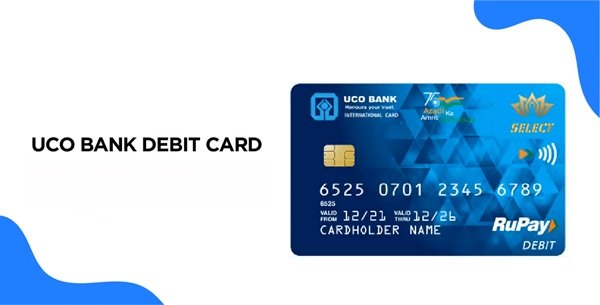
When you receive a new UCO Bank debit card, you need to activate the card and create a four-digit ATM PIN before using it normally. The PIN is required for ATM cash withdrawals and PIN-authenticated transactions at merchant outlets.
UCO Bank provides a Green PIN facility that allows debit cardholders to generate a new PIN without depending on a physical PIN mailer. Green PIN can currently be generated through a UCO Bank ATM, UCO Bank website, UCO M-Banking Plus, Internet Banking and the bank’s IVR facility.
An important feature of UCO Bank’s Green PIN system is that it works for both active and inactive debit cards. If an inactive card is used for successful Green PIN generation, the card is automatically activated.
Customers should also remember that online and international card transactions are controlled separately. By default, e-commerce and international usage can remain disabled and must be enabled when required.
What Do You Need to Activate a UCO Bank Debit Card?
Keep the following ready before starting:
- UCO Bank debit card
- Mobile number registered with UCO Bank
- Access to the registered mobile for receiving OTP
- Bank account linked with the debit card
- Complete debit card number
- Card expiry date when using Mobile Banking
- UCO M-Banking Plus credentials if using the app
- Mobile Banking TPIN
- Internet Banking credentials if using the online banking facility
The registered mobile number is particularly important because UCO Bank requires it for Green PIN generation through its ATM and website facilities.
How to Activate a New UCO Bank Debit Card
UCO Bank makes the activation process relatively simple because successful Green PIN generation can automatically activate an inactive debit card.
A practical process is:
- Generate the four-digit debit card PIN using one of UCO Bank’s Green PIN facilities.
- If the card was inactive, successful Green PIN generation activates it automatically.
- Use the card for a transaction at a UCO Bank ATM.
- Enter the newly generated four-digit PIN.
- Complete a balance enquiry, cash withdrawal or another permitted transaction.
- Check the required card controls before using the card for online or international transactions.
UCO Bank specifically requires customers planning to use their debit card internationally to first complete at least one ATM transaction in India and then enable international usage.
UCO Bank Debit Card PIN Generation Through an ATM
Green PIN is available at UCO Bank ATMs for all variants of UCO ATM/debit cards.
UCO Bank states that the Green PIN option is available on the left-bottom side of the language-selection screen at its ATMs.
The process is:
- Visit a UCO Bank ATM.
- Locate the Green PIN option on the language-selection screen.
- Select Green PIN.
- Enter the card/account information requested on the ATM screen.
- Complete the verification using the mobile number registered with the bank.
- Follow the ATM instructions for PIN generation.
- Create a new four-digit debit card PIN.
- Confirm the new PIN.
After successful Green PIN generation, the PIN can be used for debit-card transactions. If the debit card was inactive, successful Green PIN generation also activates the card.
UCO Bank specifically states that the ATM Green PIN facility has to be used at a UCO Bank ATM.
Choose a PIN that cannot be easily guessed. Avoid your date of birth, telephone-number digits, 1234, 0000 or similar combinations.
UCO Bank Debit Card PIN Generation Through the Bank Website
UCO Bank provides a dedicated Generate Green PIN facility directly on its official website.
The service can be used for both active and inactive debit cards.
To use it:
- Visit UCO Bank’s official website.
- Select Generate Green Pin from the available online services.
- Accept the applicable terms and conditions.
- Select Proceed.
- Enter the debit-card and customer information requested on the secure Green PIN screen.
- Complete the verification through your registered mobile number.
- Enter a new four-digit debit card PIN.
- Confirm and submit the request.
If the card was inactive, it is automatically activated after successful Green PIN generation.
Temporary Restriction After Website Green PIN Generation
UCO Bank applies a special security restriction when Green PIN is generated through its website.
Until 11:59 PM on the next day after Green PIN generation:
- Only one ATM transaction and one POS transaction are permitted.
- The maximum aggregated transaction amount is ₹10,000.
- E-commerce transactions are not allowed.
After the restriction period ends, the customer can use the debit card according to the normal applicable card settings and limits.
UCO Bank Debit Card PIN Generation Through UCO M-Banking Plus
UCO Bank provides a detailed Green PIN facility through the UCO M-Banking Plus application.
Follow these steps:
- Log in to UCO M-Banking Plus.
- Select Manage Cards on the home screen.
- Select Green PIN Generation.
- Choose the account number from the dropdown menu.
- Select Proceed.
- The app will display debit cards linked with the selected account.
- Select Generate Green PIN against the required debit card.
- If several debit cards are linked with the account, select the correct card.
- Enter the complete debit card number.
- Enter the card expiry date.
- After successful validation, enter a new four-digit debit card PIN.
- Confirm the new PIN.
- Enter the OTP received on your registered mobile number.
- Enter your Mobile Banking TPIN.
- Select Submit.
After successful PIN generation, the app displays a confirmation and UCO Bank sends an SMS to the registered mobile number.
If the debit card was inactive before the process, successful Green PIN generation through UCO M-Banking Plus automatically activates it.
UCO Bank Debit Card Green PIN Through Internet Banking
UCO Bank also provides debit-card Green PIN generation through Retail Internet Banking.
The bank lists Debit Card PIN Set (Green PIN) among the services available to Retail Internet Banking customers.
The process generally involves:
- Log in to UCO Bank Retail Internet Banking.
- Open the available debit-card services.
- Select Debit Card PIN Set/Green PIN.
- Select the debit card for which the PIN needs to be generated.
- Enter the requested card information.
- Complete the authentication displayed by UCO Bank.
- Create a new four-digit PIN.
- Confirm the PIN.
- Submit the request.
As UCO Bank can change the Internet Banking menu layout, customers should follow the current menu displayed after logging in.
UCO Bank Debit Card PIN Generation Through IVR
UCO Bank also provides Green PIN generation through its IVR facility.
The bank currently specifies:
1800 8910
for the Green PIN IVR process.
To use it:
- Call 1800 8910 from the mobile number registered with UCO Bank.
- Select the appropriate banking service.
- Choose the Green PIN/debit-card PIN service.
- Provide the information requested by the IVR.
- Complete the required authentication.
- Create a new four-digit debit card PIN.
- Confirm the PIN according to the IVR instructions.
UCO Bank advises customers to call from the registered mobile number and follow the step-by-step prompts provided during the call.
Temporary Restriction After IVR Green PIN Generation
UCO Bank applies a temporary restriction when the PIN is generated through IVR.
Until 11:59 PM on the next day following Green PIN generation:
- Only one ATM or POS transaction is allowed.
- The maximum transaction amount is ₹10,000.
- E-commerce transactions are not allowed.
Normal permitted debit-card usage becomes available after this security period, subject to the card’s applicable limits and transaction settings.
How to Enable Online Transactions on a UCO Bank Debit Card
UCO Bank states that e-commerce transactions are disabled by default on debit cards as a security measure.
Therefore, a newly activated card may work at an ATM but still be declined when you attempt an online payment.
Customers can manage card transaction channels through UCO M-Banking Plus and UCO Bank’s card-security facilities.
These controls include:
- ATM transactions
- POS transactions
- E-commerce transactions
- Domestic usage
- International usage
Customers can enable or disable the required service and also set daily transaction limits.
If an online payment is declined, first check whether e-commerce usage has been enabled and whether the available e-commerce limit is sufficient.
How to Enable International Transactions on a UCO Bank Debit Card
International transactions are also disabled by default.
Before using an eligible UCO Bank debit card internationally:
- Use the debit card for at least one ATM transaction in India.
- Make sure PAN is linked with the bank account.
- Open UCO M-Banking Plus or the bank’s available card-control facility.
- Select the relevant debit card.
- Enable international usage.
- Set the required transaction limit.
- Confirm the change.
UCO Bank states that secure multi-factor authenticated transactions are permitted for international card usage.
International capability can also depend on the particular debit-card variant.
What Should You Do After Generating the UCO Bank Debit Card PIN?
After creating the PIN, perform a small ATM transaction to make sure that the card and PIN are functioning correctly.
You should also check your transaction settings if you intend to use the card for:
- Online shopping
- High-value POS purchases
- International transactions
UCO Bank advises cardholders to change their debit-card PIN regularly and specifically recommends changing it at least once every 180 days as a security precaution.
Never share your debit card PIN, OTP, card number, CVV or Internet/Mobile Banking credentials with anyone.
What If UCO Bank Debit Card PIN Generation Fails?
If Green PIN generation is unsuccessful, check whether:
- Your mobile number is registered with UCO Bank.
- The correct debit card has been selected.
- The complete debit card number has been entered correctly.
- The expiry date entered in UCO M-Banking Plus is correct.
- The OTP is being received on the registered mobile number.
- The correct Mobile Banking TPIN is being entered.
- The debit card has not been hotlisted.
- The card is properly linked with the selected bank account.
Remember that an inactive card by itself is not necessarily a problem because UCO Bank permits Green PIN generation for inactive cards and activates the card automatically after successful PIN generation.
If the problem continues, contact UCO Bank Customer Care.
UCO Bank’s current Contact Us page lists:
1800 8910
as its toll-free customer-care number.
The bank’s security and debit-card guidance also continues to list 1800 103 0123 for debit-card assistance and card blocking.
Always obtain customer-care numbers directly from UCO Bank’s official website rather than from search advertisements or numbers displayed at an ATM by an unknown party.
FAQs
1. Can I generate Green PIN if my UCO Bank debit card is still inactive?
Yes. UCO Bank specifically states that its Green PIN facility can be used for both active and inactive debit cards. When Green PIN generation is completed successfully for an inactive card, the card is automatically activated.
2. Does UCO Bank charge for Green PIN generation?
UCO Bank’s current service-charge schedule states that there is no charge for Green PIN. A conventional duplicate PIN request is separately listed with a charge, so using the self-service Green PIN facility can avoid that duplicate-PIN charge.
3. Can I generate a UCO Bank Green PIN at another bank’s ATM?
No. UCO Bank specifically states that its ATM Green PIN functionality can be availed through UCO Bank ATMs only. Once your permanent PIN and card are ready, the debit card can be used at supported ATMs of other banks subject to normal rules and transaction charges.
4. What should I do if I lose my UCO Bank debit card before or after activating it?
Block or hotlist the card immediately. UCO Bank allows customers to hotlist a lost or stolen debit card through its customer-care facility or UCO M-Banking Plus. The bank also provides an SMS facility under which HOT can be sent from the registered mobile number to 9230192301. Do not wait to see whether an unauthorized transaction occurs before blocking a missing card.